> ## Documentation Index
> Fetch the complete documentation index at: https://docs.zerodrift.com/llms.txt
> Use this file to discover all available pages before exploring further.
# Connecting the MCP server
> Connect Notion, Linear, Confluence, or Google Drive through the Connections Service and turn a source document into an enforceable policy.
ZeroDrift's Connections Service talks to a provider's MCP server as a read-only client. You sign in with your own Notion, Linear, Confluence, or Google Drive account, browse what that account can already see, pick a document, and ZeroDrift archives it and runs the same custom-policy import pipeline as a file upload.
This page covers what the connection can access, how to set up each live connector, what happens after you pick a document, and how to diagnose a failed sync.
Today, connections use the account of the person who clicks **Connect**. ZeroDrift does not write back to the provider, and it does not use a service account.
## What a connection can access
A connection acts as the person who completed OAuth. It can read documents that person can already open in the provider. It does not combine content across accounts, and it only calls the read tools ZeroDrift registered for that provider.
| Boundary | What it means |
| --------------------------- | ---------------------------------------------------------------------------------------------------------------------------------------------------------------------------------------- |
| Acting user | The OAuth grant is for one human account. Switching Notion, Linear, Atlassian, or Google accounts requires disconnecting and connecting again. |
| Read-only | ZeroDrift only calls read tools. For Confluence, the Atlassian grant is product-level and can include write scopes on the token; the Connections Service still refuses every write tool. |
| One provider per connection | Notion, Linear, Confluence, and Google Drive are separate sources. A Linear issue is not visible through a Notion connection. |
| No search language | Confluence CQL and similar query languages are not exposed. You browse the tree; you do not send an operator string. |
| No scheduled re-sync | Folder watch and daily re-sync are not available, even though the Sources UI still advertises daily sync. Re-sync a document when you want to refresh the policy. |
| Connector | Status | What you can browse |
| ---------------------- | ------ | ------------------------------------------------------------ |
| Notion | Live | Pages and databases the connected Notion account can read |
| Linear | Live | Documents and issues the connected Linear account can read |
| Confluence (Atlassian) | Live | Spaces and pages on sites included in the Atlassian grant |
| Google Drive | Live | Folders and files under My Drive, Shared with me, and Recent |
## Set-up guide
### Prerequisites
* A ZeroDrift Command workspace with access to **Settings → Sources** and **Policy Studio**
* An account in Notion, Linear, Confluence, or Google Drive that can already open the documents you want to import
* For Confluence: an Atlassian org that allows the classic Rovo MCP consent (see [Confluence](#confluence-atlassian) if consent is blocked)
### How to connect
The flow is the same for every live connector: connect, browse, pick, sync.
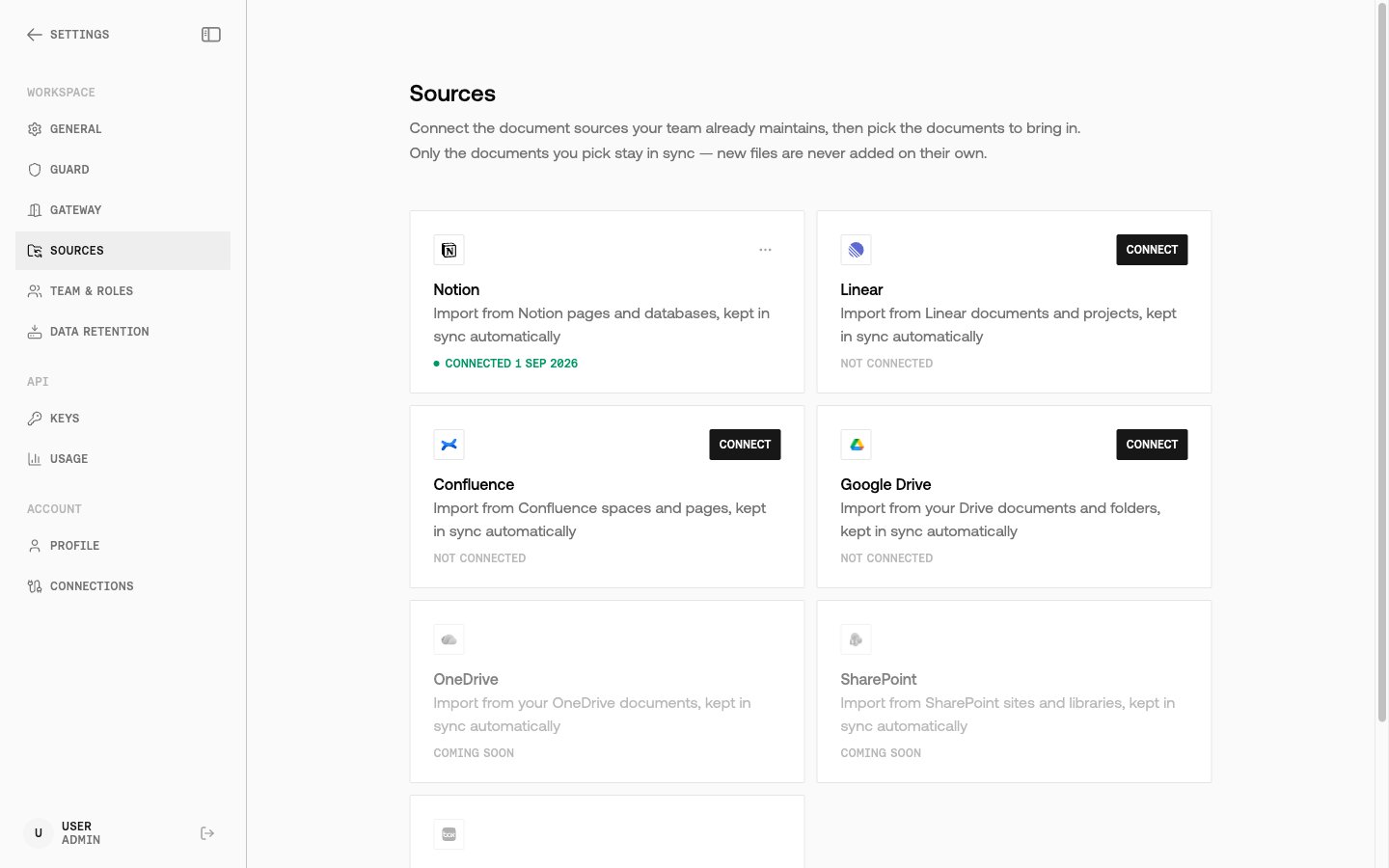
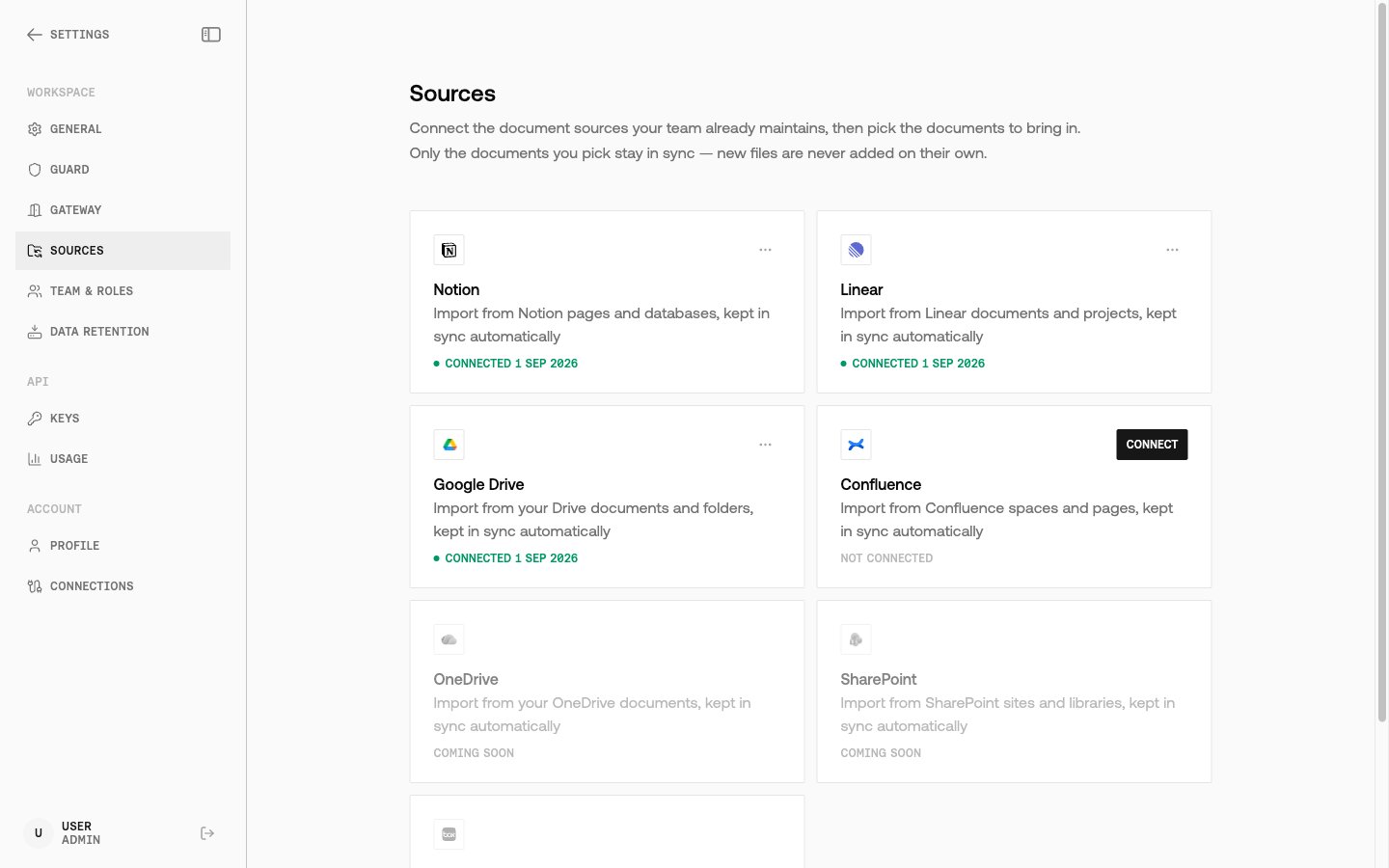
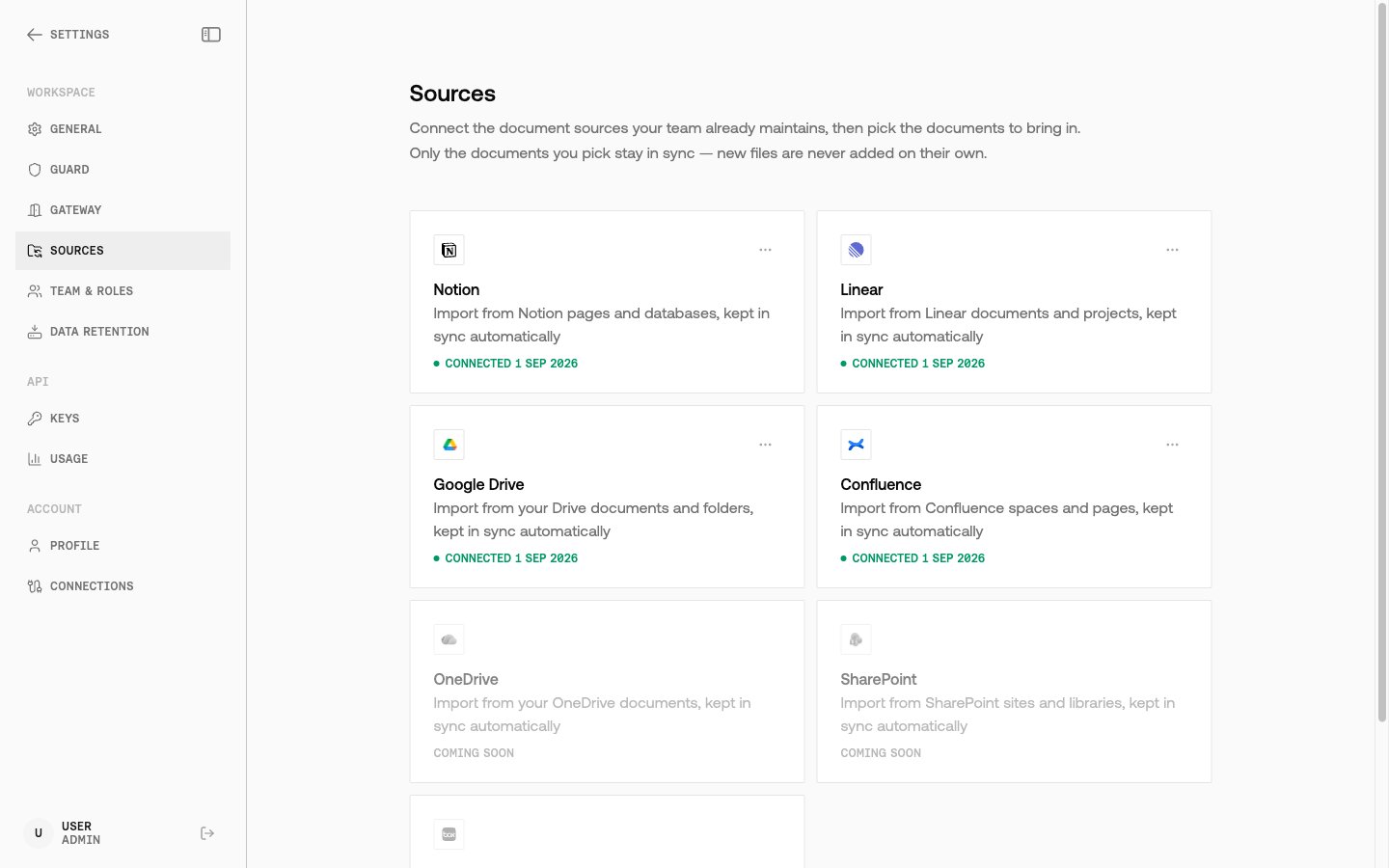
1. In Command, open **Settings → Sources**.
2. Choose **Notion**, **Linear**, **Confluence**, or **Google Drive**, then **Connect**.
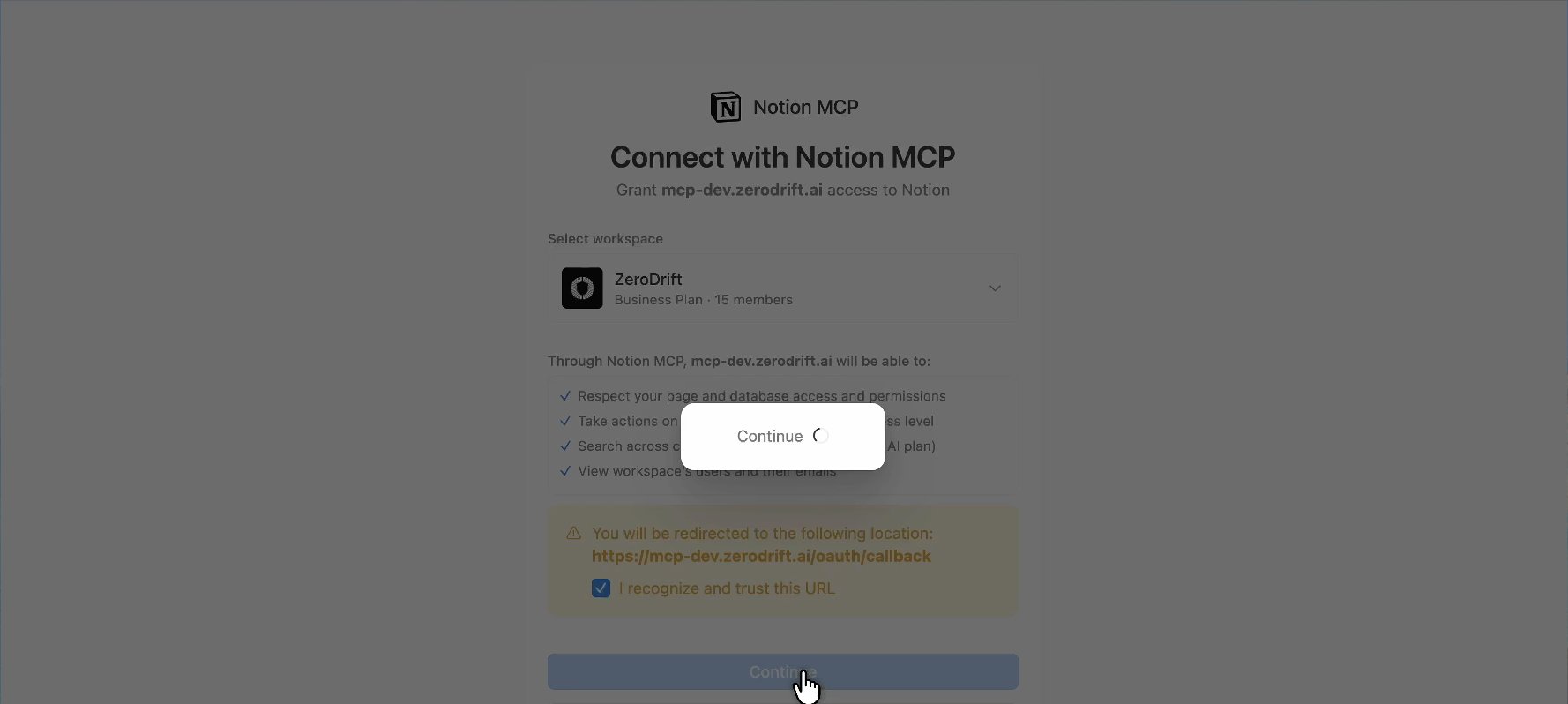
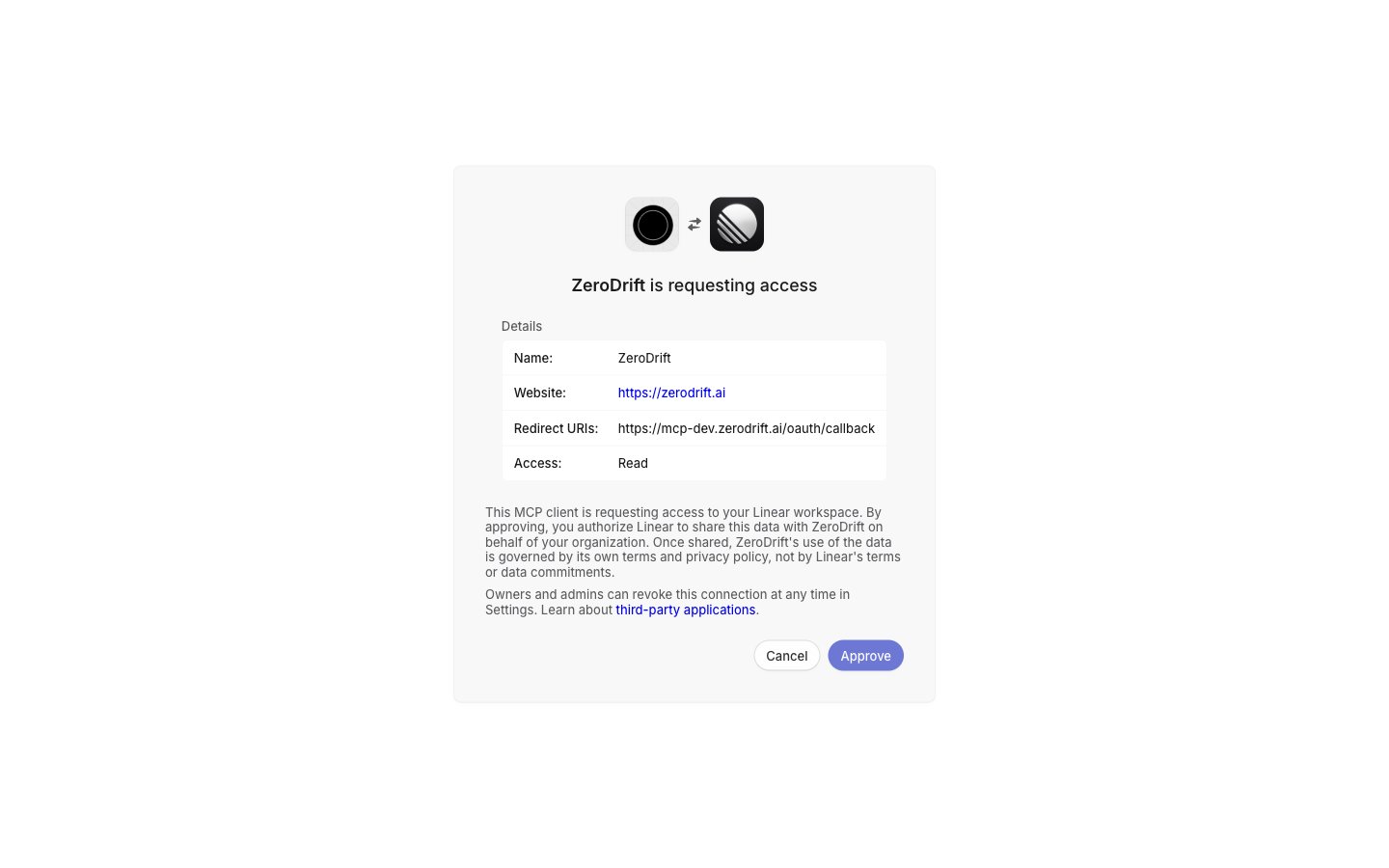
3. Complete the provider's OAuth screen in the new tab. Grant only the workspace, site, or pages you want ZeroDrift to read.
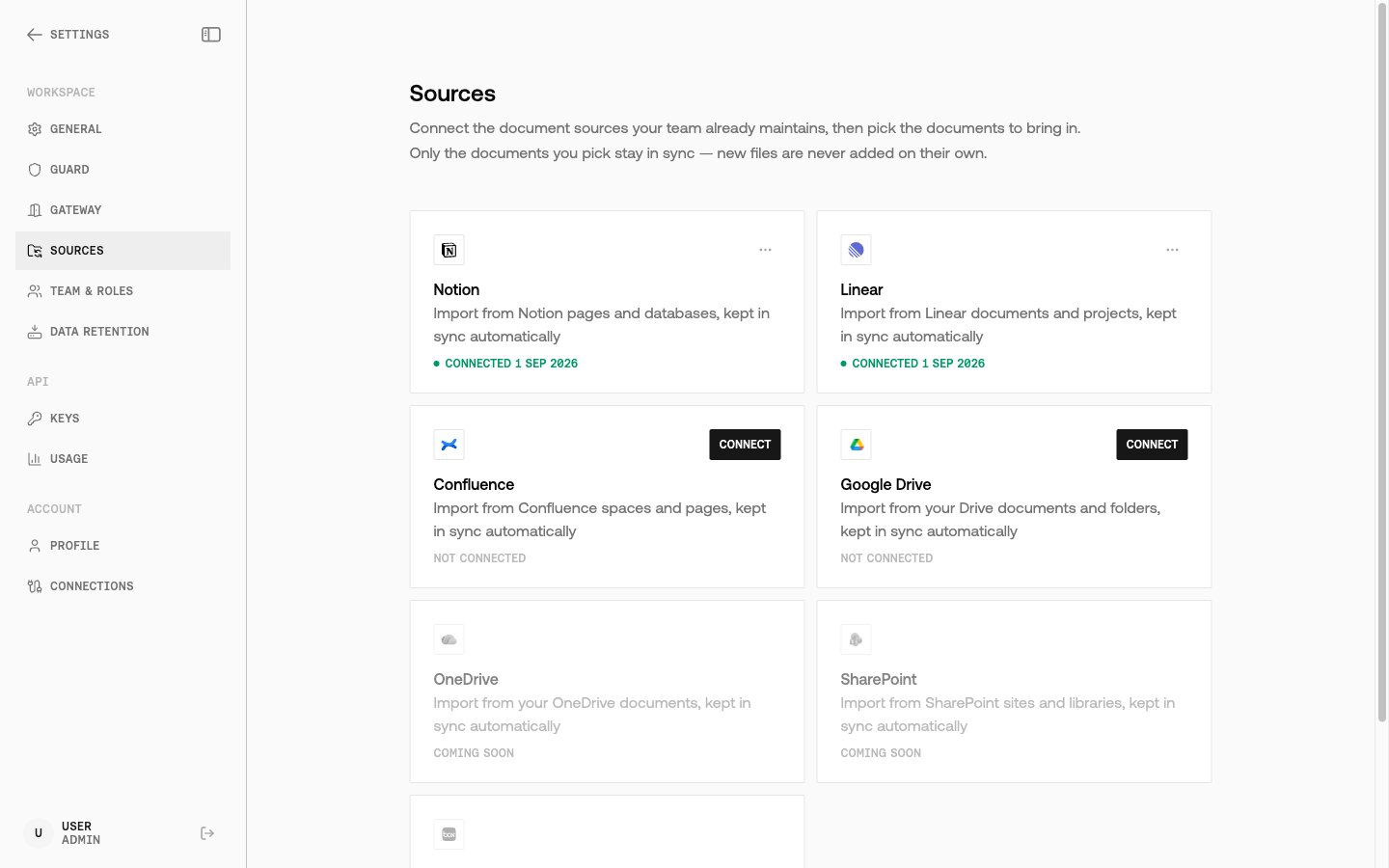
4. When the tab returns you to Command, the source is connected. Open it to browse the document tree.
5. Select one or more documents and sync. Each file is archived, then starts a custom policy import.
6. Open **Policy Studio**. The document appears as a custom policy import (`importing` while extraction runs, then pending review, failed with a reason, or ready to enforce).
You can also start from Policy Studio: **Add Policy** → import from a connected source.
### Notion
1. On **Settings → Sources**, select **Notion** → **Connect**.
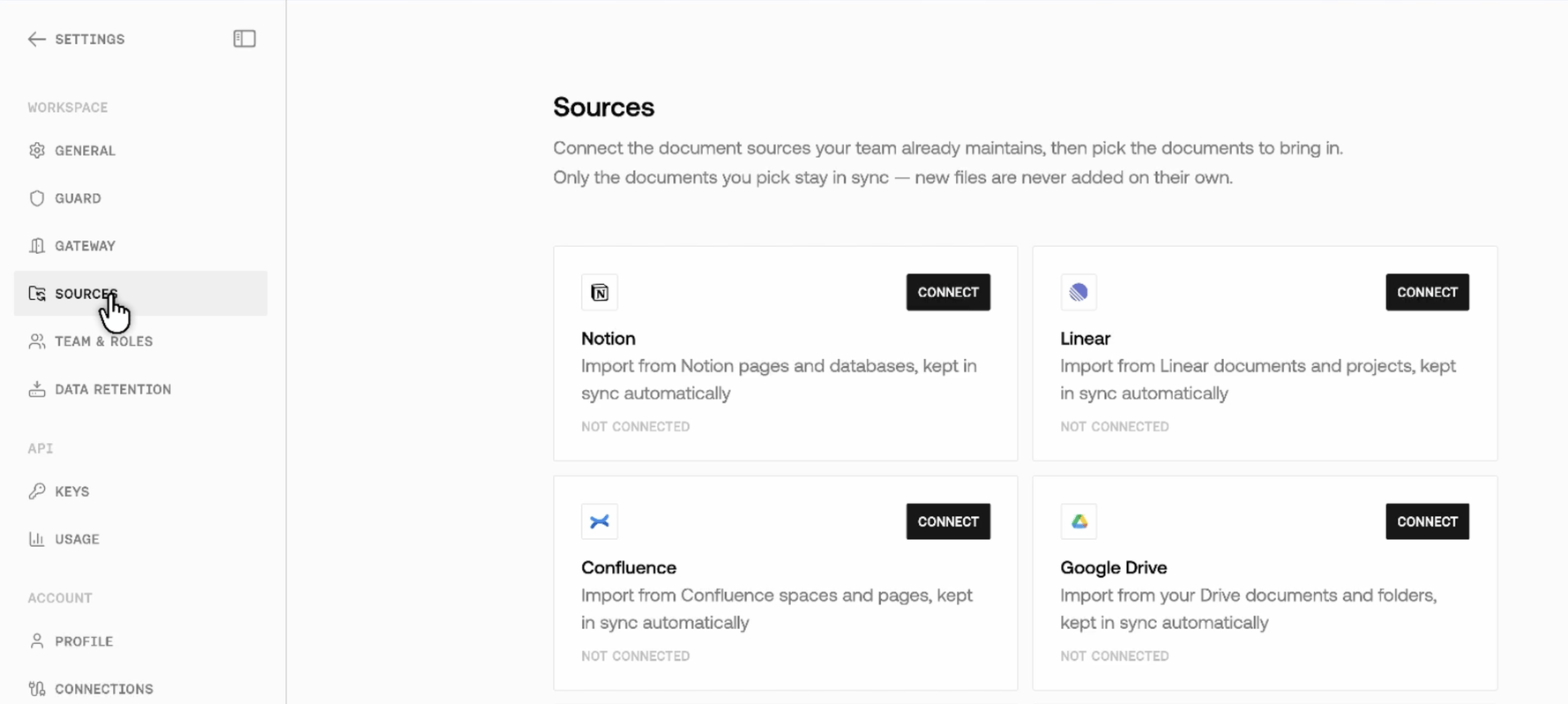
 The Connect panel and the Sources cards say picked documents are kept in sync daily. Scheduled re-sync is not live yet — re-sync a document yourself when you want to refresh the policy.
2. Sign in to Notion and approve access for the pages or workspace ZeroDrift should read.
The Connect panel and the Sources cards say picked documents are kept in sync daily. Scheduled re-sync is not live yet — re-sync a document yourself when you want to refresh the policy.
2. Sign in to Notion and approve access for the pages or workspace ZeroDrift should read.
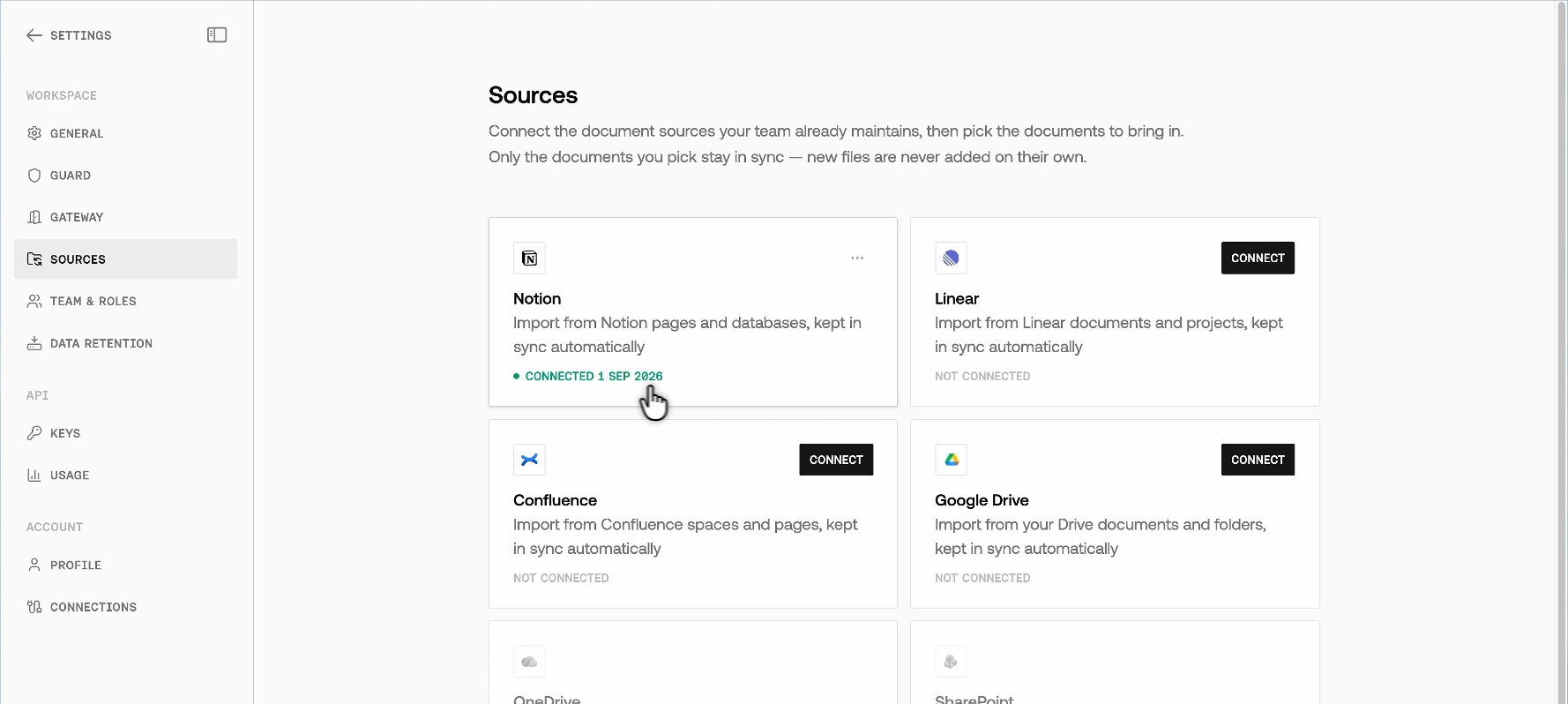 3. Back in Command, open the Notion source. Browse pages and databases the connected account can see.
4. Pick the policy document and sync.
3. Back in Command, open the Notion source. Browse pages and databases the connected account can see.
4. Pick the policy document and sync.
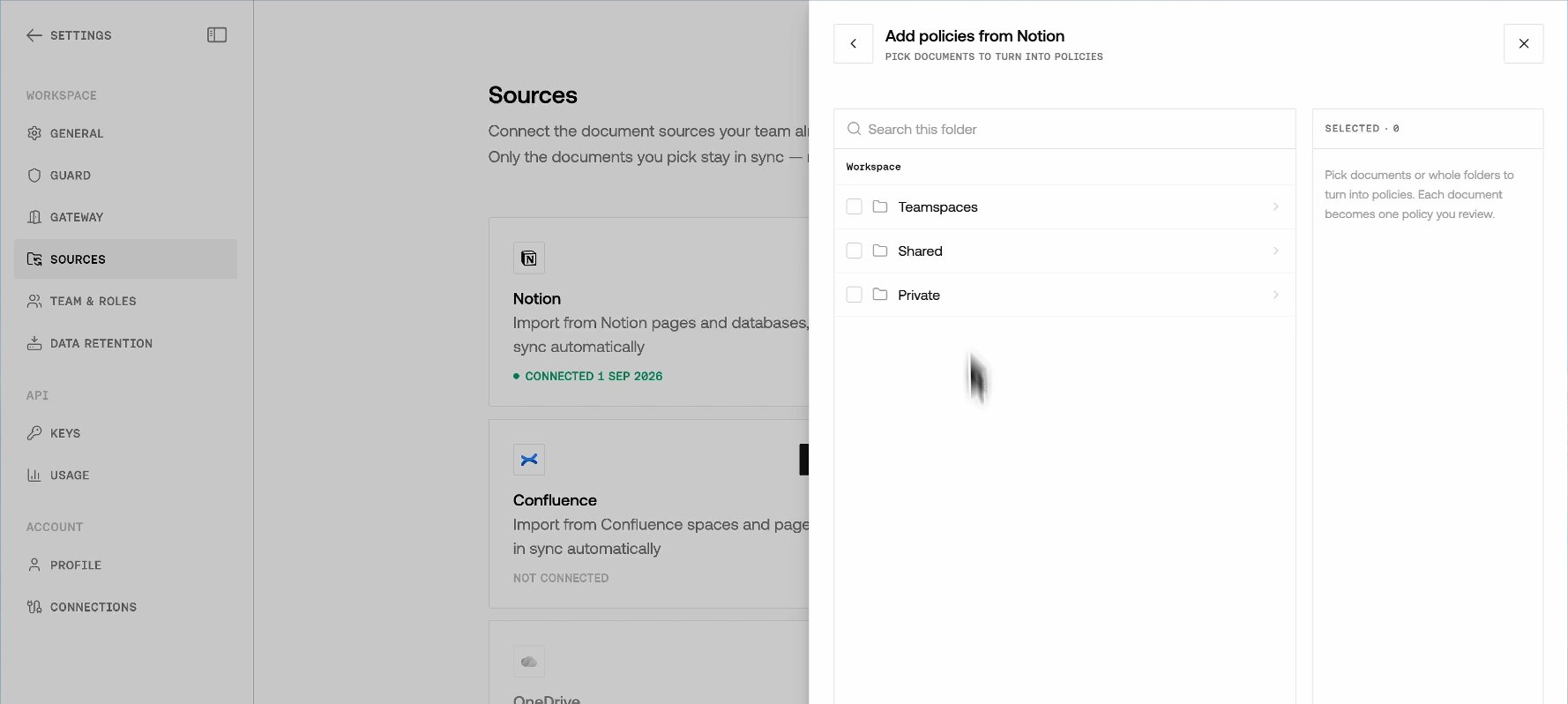 If browse is empty, confirm you approved the Notion workspace that holds the policy, not a different workspace on the same email.
### Linear
1. On **Settings → Sources**, select **Linear** → **Connect**.
If browse is empty, confirm you approved the Notion workspace that holds the policy, not a different workspace on the same email.
### Linear
1. On **Settings → Sources**, select **Linear** → **Connect**.
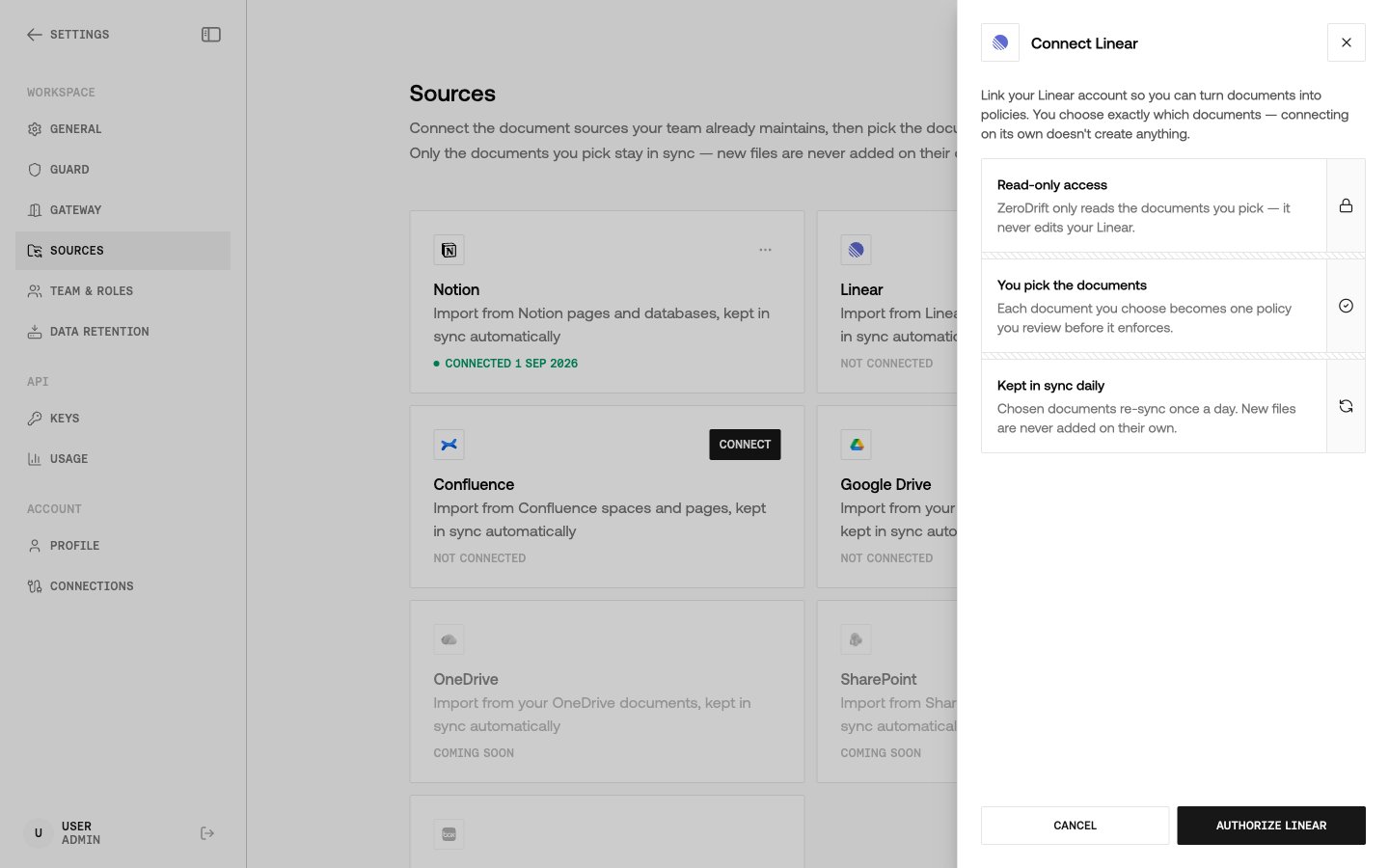 2. Sign in to Linear and approve access.
 3. Browse documents and issues the connected Linear account can read.
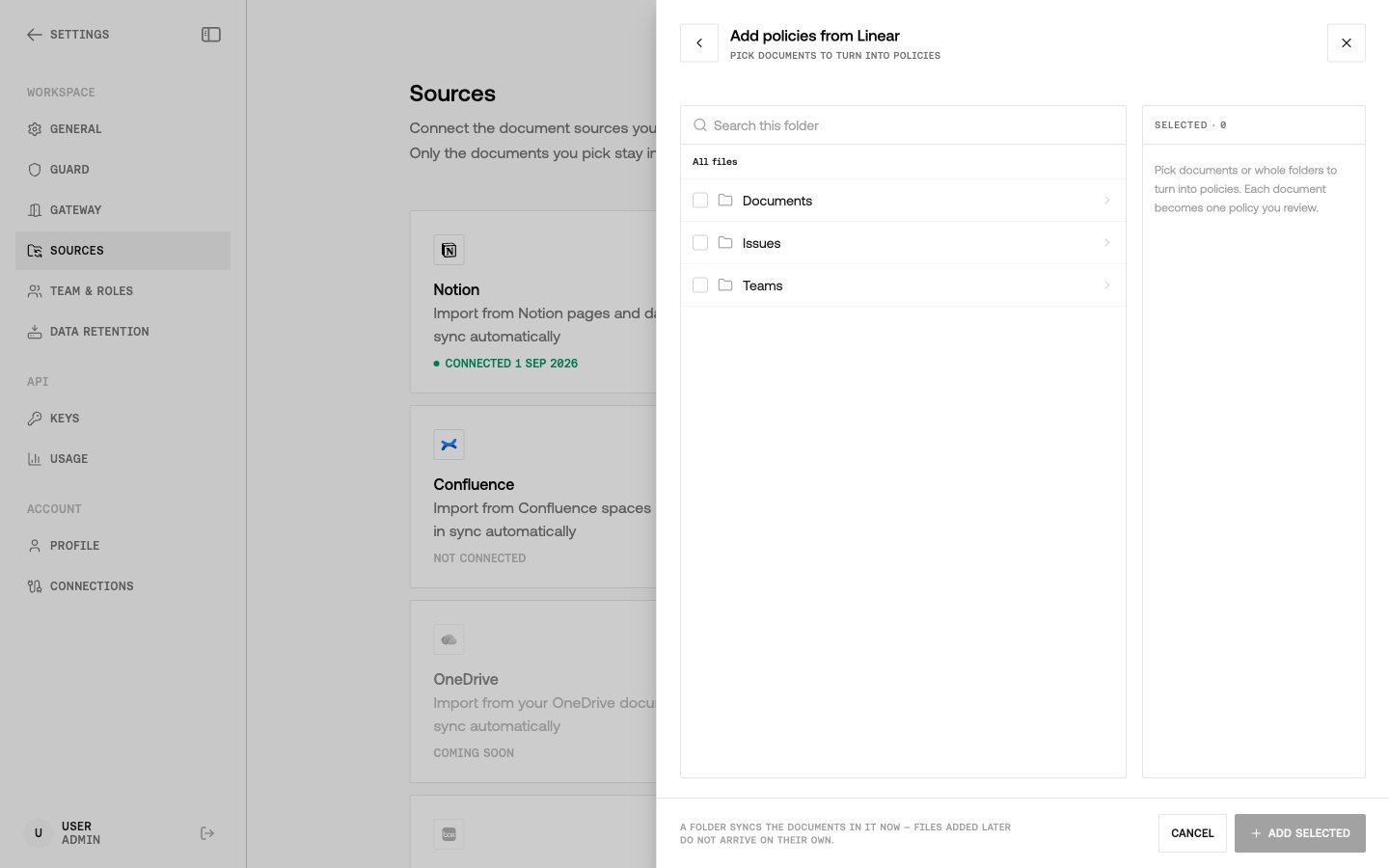 4. Pick the item that holds the policy text and sync.
If a document you can open in Linear does not appear, disconnect and connect again, then browse from the workspace root. Do not paste an issue id into the tree.
### Confluence (Atlassian)
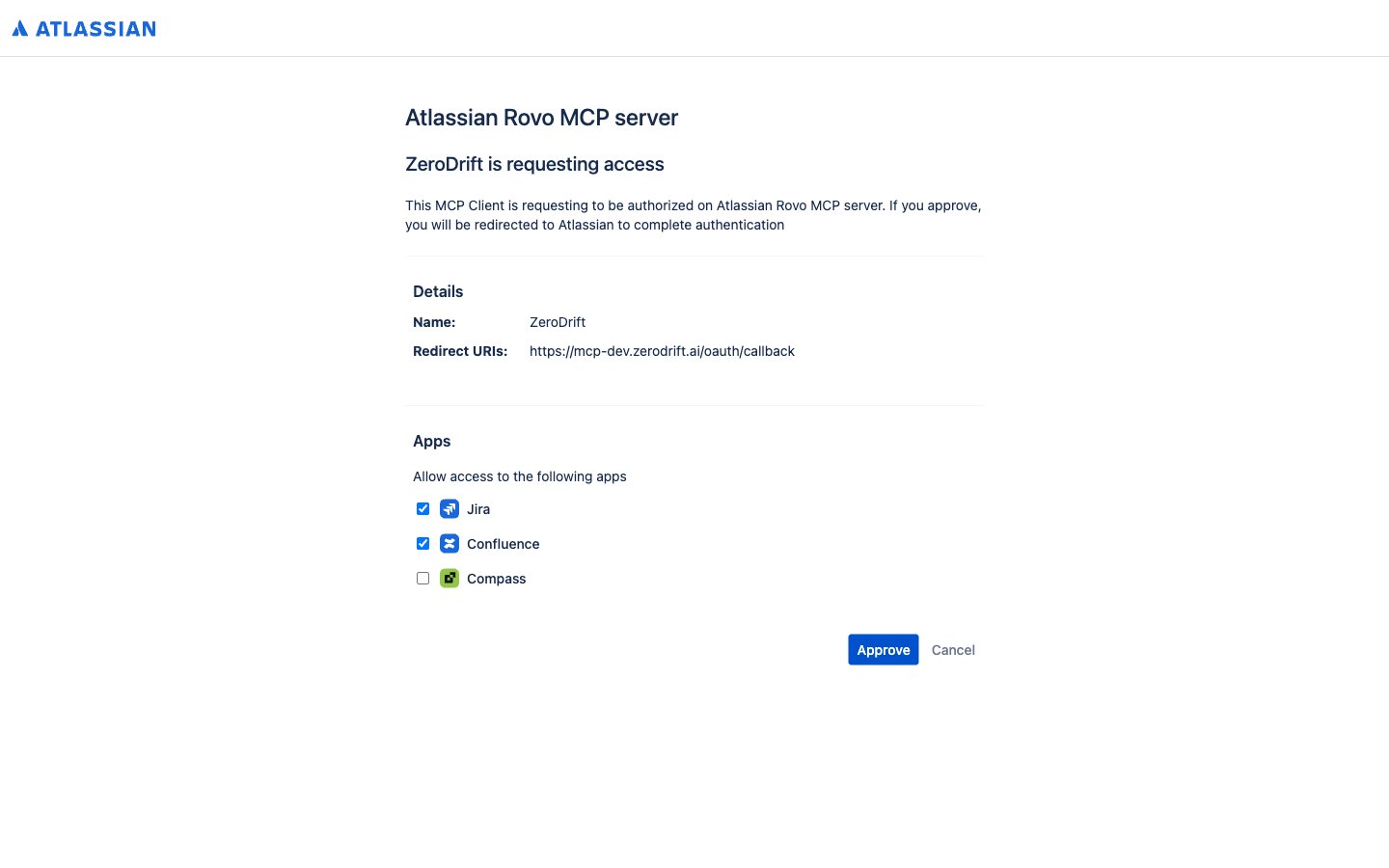
Confluence uses Atlassian's classic MCP facade (`/v1/mcp`), not the granular `/v1/mcp/authv2` path. Authv2 cannot finish consent against a real Atlassian org while **Permissions** on the Rovo MCP server are blocked.
1. On **Settings → Sources**, select **Confluence** → **Connect**.
4. Pick the item that holds the policy text and sync.
If a document you can open in Linear does not appear, disconnect and connect again, then browse from the workspace root. Do not paste an issue id into the tree.
### Confluence (Atlassian)
Confluence uses Atlassian's classic MCP facade (`/v1/mcp`), not the granular `/v1/mcp/authv2` path. Authv2 cannot finish consent against a real Atlassian org while **Permissions** on the Rovo MCP server are blocked.
1. On **Settings → Sources**, select **Confluence** → **Connect**.
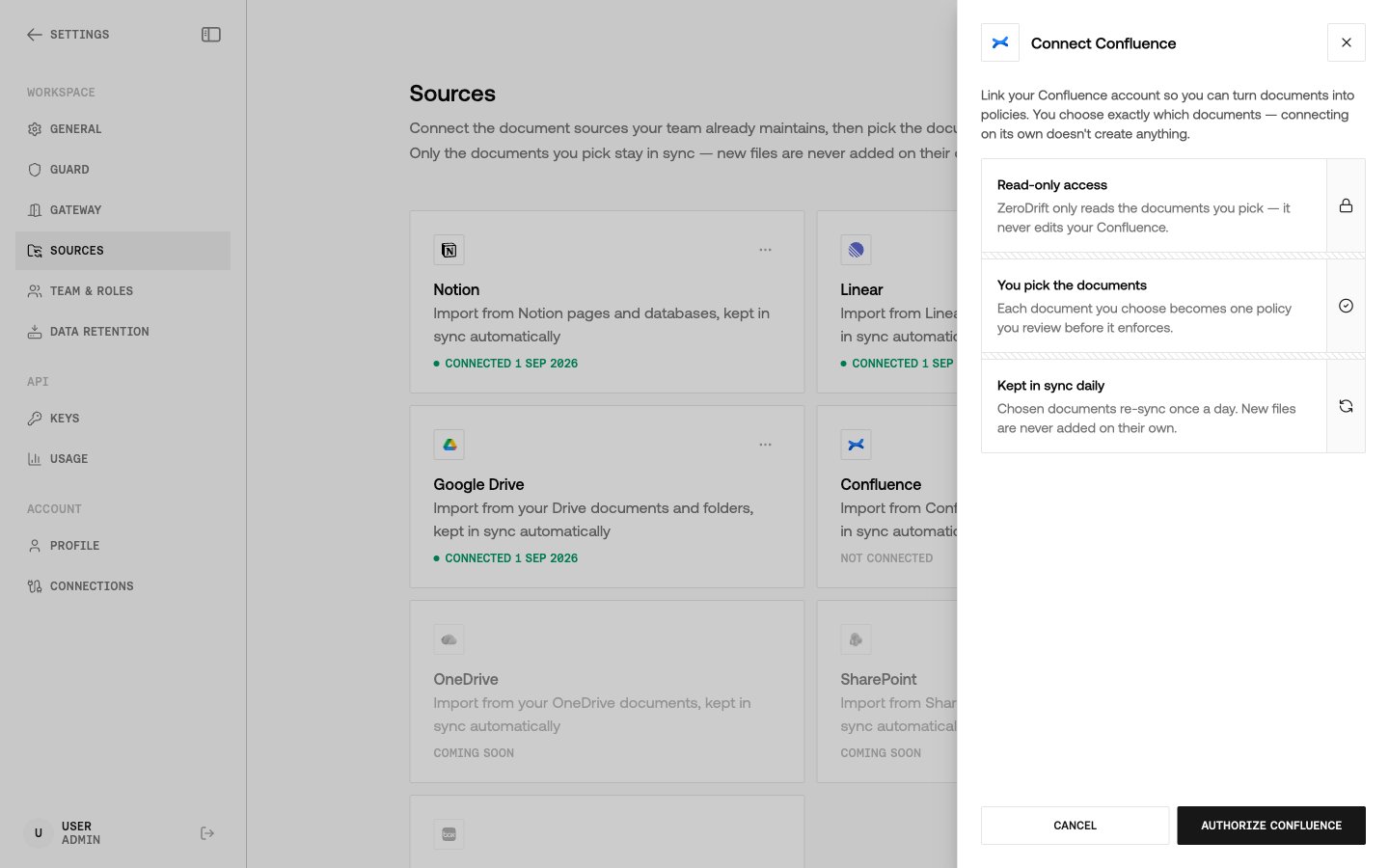 2. Complete Atlassian consent. The screen is product checkboxes, not a narrowed scope list.
 3. Browse spaces, then pages. Expand one level at a time; opening a space homepage does not list every page in the space.
 4. Pick pages and sync.
If consent says **Permissions are blocked for this site**, an Atlassian admin needs to unblock the Rovo MCP server:
1. Open Atlassian Administration.
2. Go to **Rovo** → **Rovo MCP server** → **Permissions**.
3. Allow the site, then retry **Connect** in Command.
A connection created before Confluence browse shipped can return `409` when you try to browse. Disconnect and connect again so the grant includes the read tools.
### Google Drive
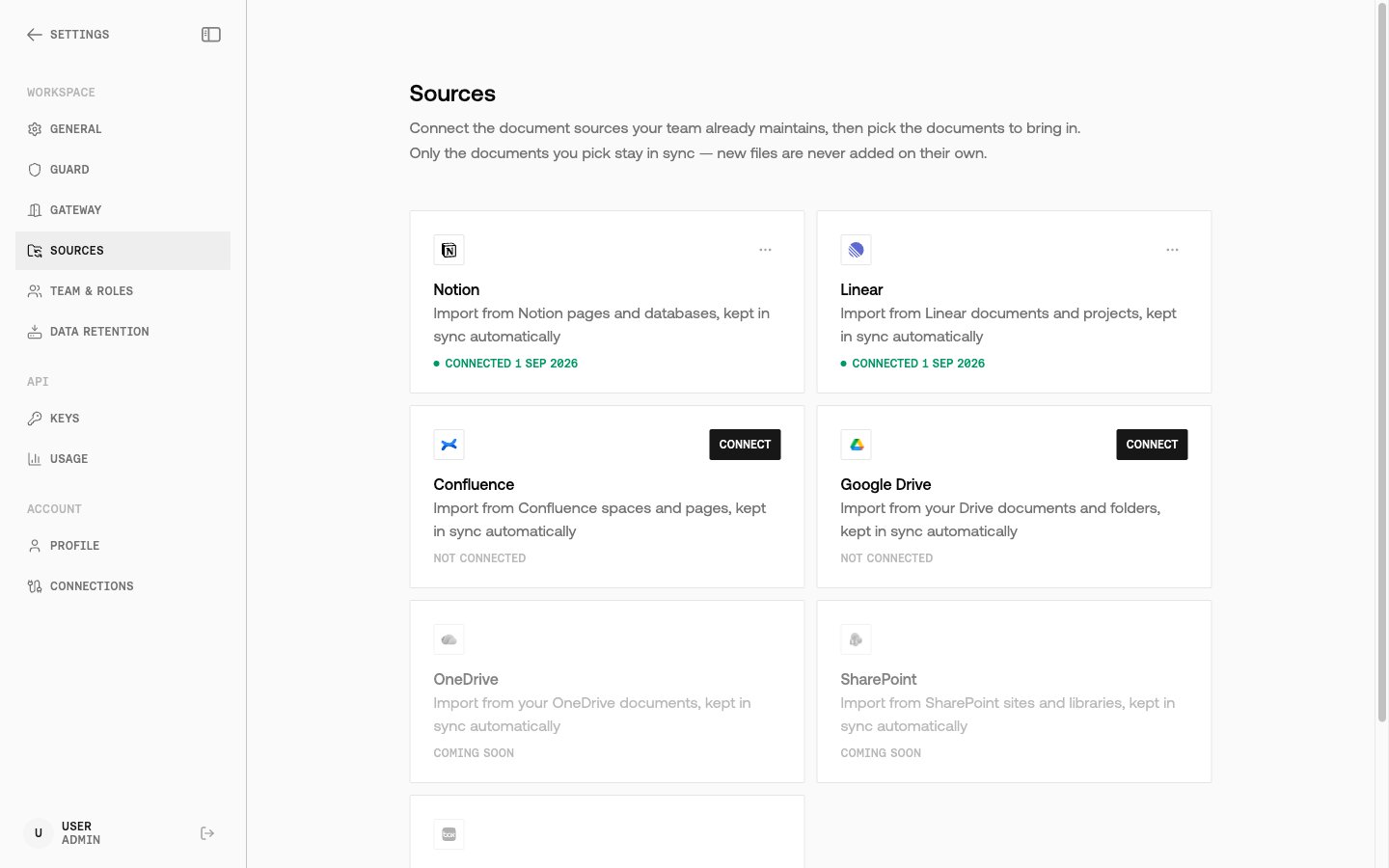
1. On **Settings → Sources**, select **Google Drive** → **Connect**.
4. Pick pages and sync.
If consent says **Permissions are blocked for this site**, an Atlassian admin needs to unblock the Rovo MCP server:
1. Open Atlassian Administration.
2. Go to **Rovo** → **Rovo MCP server** → **Permissions**.
3. Allow the site, then retry **Connect** in Command.
A connection created before Confluence browse shipped can return `409` when you try to browse. Disconnect and connect again so the grant includes the read tools.
### Google Drive
1. On **Settings → Sources**, select **Google Drive** → **Connect**.
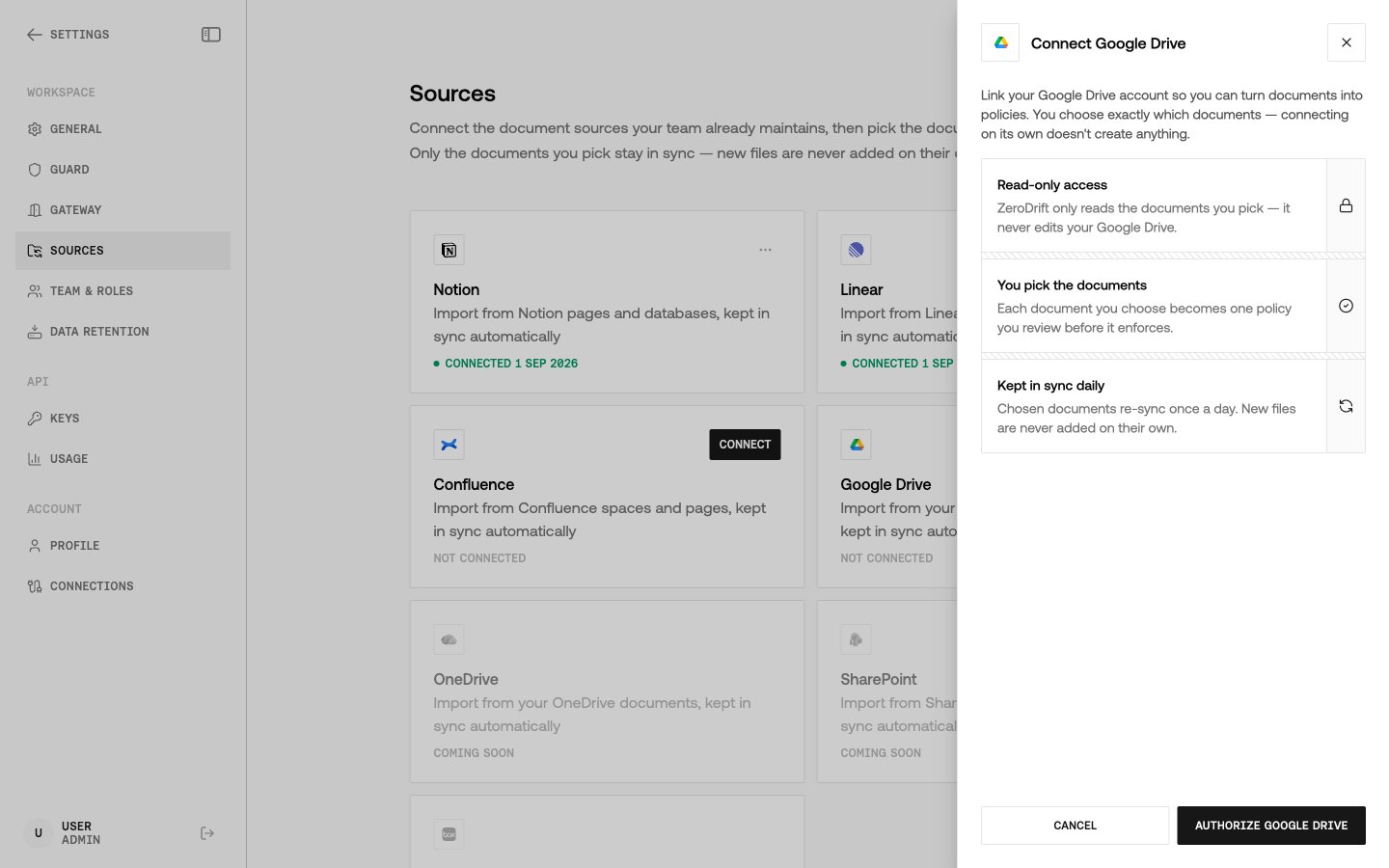 2. Sign in with the Google account that can open the files you want to import, and approve access.
3. Browse from **All locations**. The first level is **My Drive**, **Shared with me**, and **Recent** — places to look, not a flat file list.
2. Sign in with the Google account that can open the files you want to import, and approve access.
3. Browse from **All locations**. The first level is **My Drive**, **Shared with me**, and **Recent** — places to look, not a flat file list.
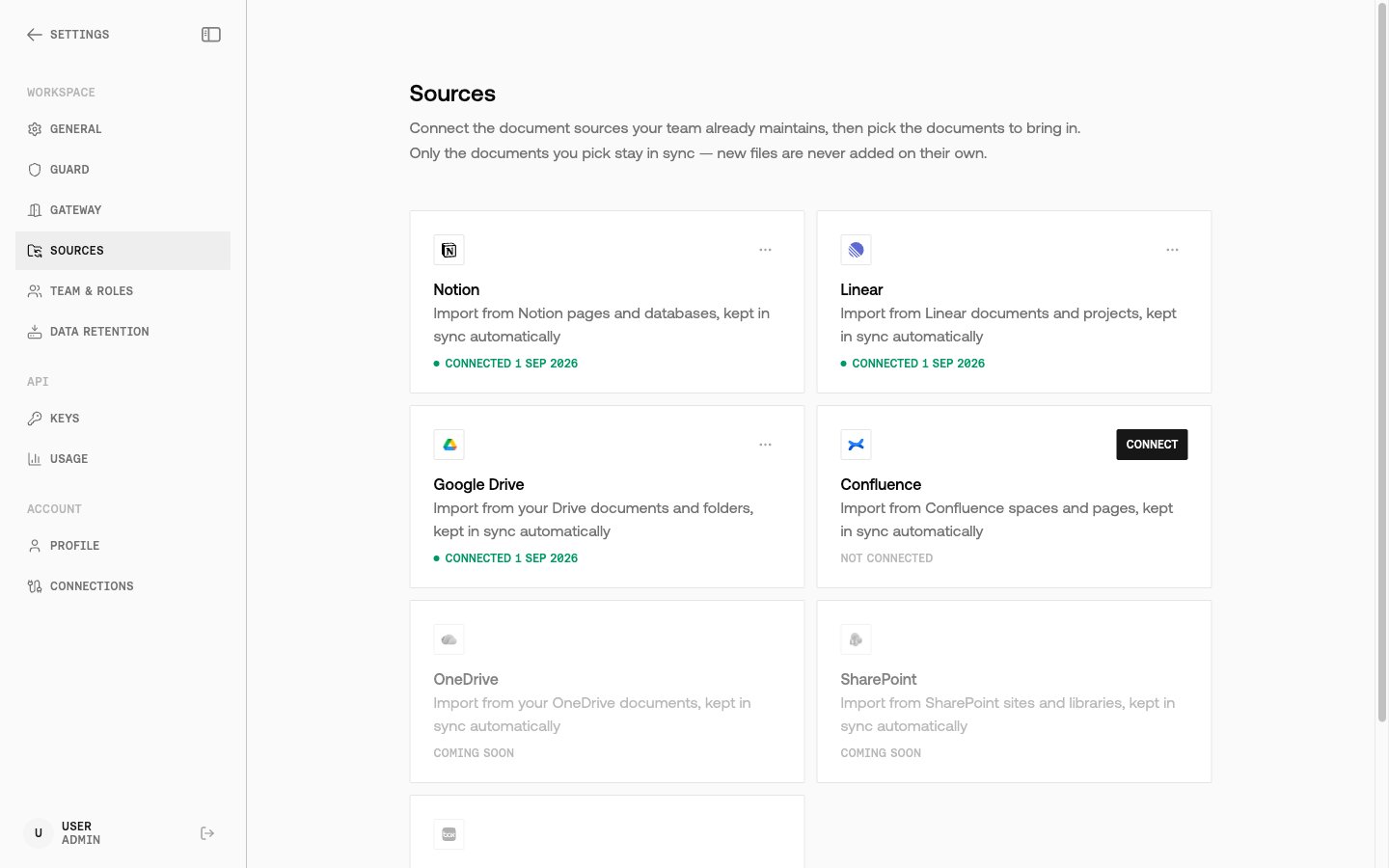
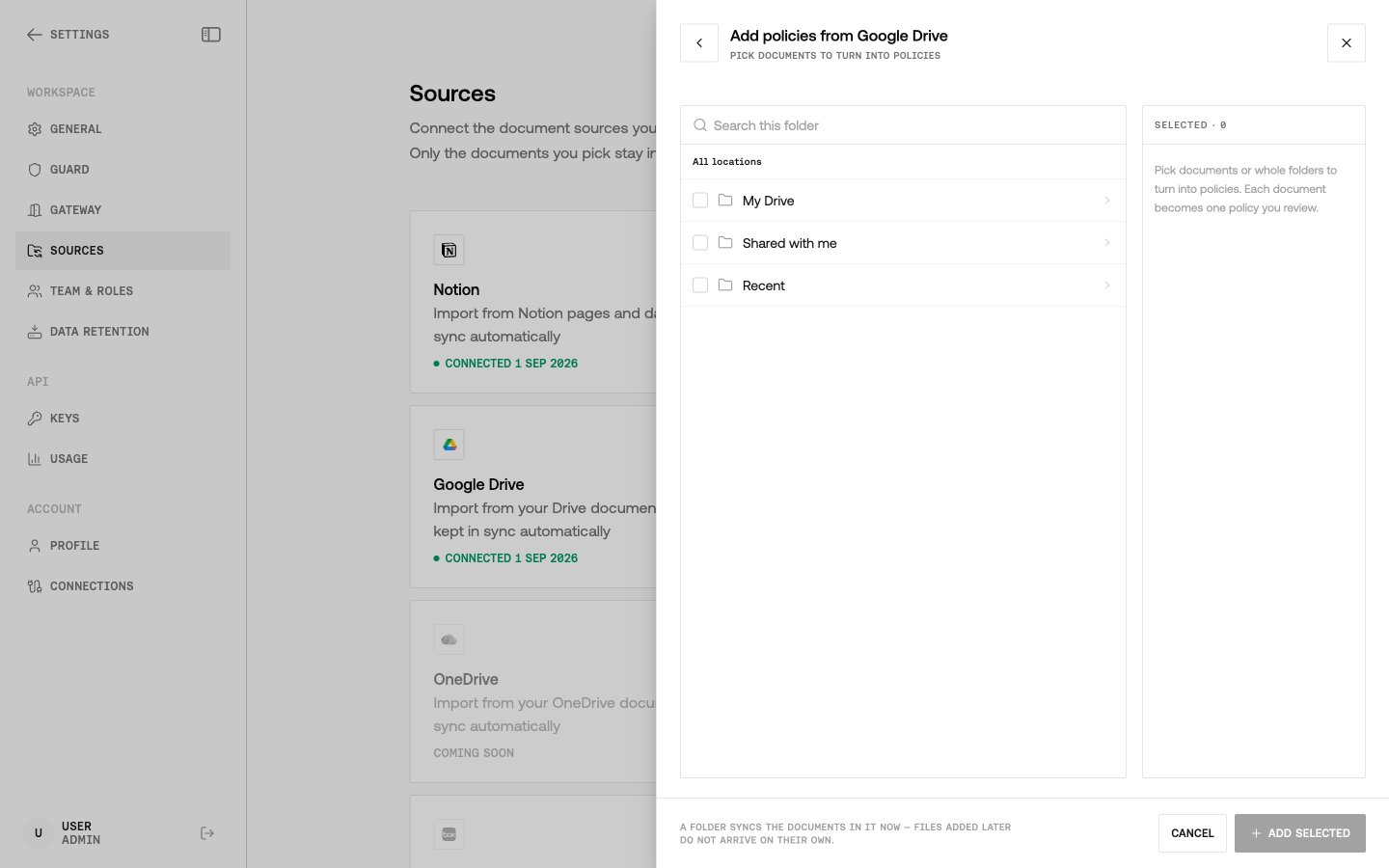 4. Open a folder, pick files, and sync.
Trashed files can still appear in listings; skip them. Drive file search from Command is browse-only — do not paste a Drive query string into the tree.
## After you pick a document
A successful sync does not stop at archive. ZeroDrift:
1. Stores the document with provenance on the record (author, last edited time, source URL when the provider supplies one, and connection id).
2. Sends the bytes through the same extraction path as [Import Policy](/api-reference/custom-policies/import-policy).
3. Records the `import_id`. Status is `processing` until extraction finishes.
4. Surfaces the row in Policy Studio as a custom policy import. Re-syncing a document that already produced a policy **refreshes that policy** instead of creating a second one. The previous import's rules are retired before the replacement is activated, so you do not enforce both versions.
Unchanged content is skipped on re-sync **only if** an `import_id` already exists. A document archived before imports existed still produces one on the next sync.
If the import pipeline refuses the file, the sync fails with a reason you can read and the archived object is kept. The import is not shown as reviewable.
From there the API path is unchanged: poll [Get Import Details](/api-reference/custom-policies/get-import-details), then [Activate Rules](/api-reference/custom-policies/activate-rules). To train a policy-specific adapter on that import, follow [Training Studio](/training-studio).
## Capabilities
| Capability | What it does | Example |
| ---------- | ------------------------------------------------------------------------------- | ------------------------------------------------------- |
| Connect | User-delegated OAuth; credentials are stored per workspace | Connect Notion from **Settings → Sources** |
| Browse | Read-only tree of what the connected account can see | Open Confluence, expand a space, list child pages |
| Sync | Fetch selected documents, archive them, start policy import | Pick a Notion page named "Communications policy" |
| Refresh | Re-sync updates the same custom policy; superseded rules are retired first | Sync the Linear doc again after the policy text changes |
| Revoke | Disconnect is final; ZeroDrift cannot call the provider until you connect again | Disconnect Linear on the Sources page |
ZeroDrift does not expose these as public MCP tools for Claude or ChatGPT. The Connections Service is the MCP client. The public API you call after sync is the Custom Policies API.
## Troubleshooting
### The error names the provider, not "unreachable"
When a provider rejects a call, Command shows that rejection. A 401 or 403 from Notion, Linear, Atlassian, or Google Drive means the grant is dead or forbidden. Reconnect the source. ZeroDrift does not keep retrying those failures.
A transport timeout or DNS failure is different: you can retry that. If the UI still says the service is unreachable after a successful connect, check network access to Command, not the provider's status page first.
### Import failed, and the reason is on the row
Failed imports show why they failed and are not presented as ready for review. Fix the document or the connection, then sync again. A generic "unreachable" message is no longer the expected failure text.
### Confluence consent never finishes
If **Connect** fails with **Permissions are blocked for this site**, the block is in Atlassian Administration → **Rovo** → **Rovo MCP server** → **Permissions**, not in ZeroDrift.
### Browse returns 409 after connecting Confluence
Disconnect and connect again. A grant created before Confluence browse shipped can omit the read tools. Browse stays refused until you reconnect.
### Re-sync created overlapping rules
It should not. A refresh retires the previous import's rules before activating the new extraction. If you activated an older import through the API while a refresh was in flight, use [Deactivate Rules](/api-reference/custom-policies/deactivate-rules) on the superseded `import_id`.
### The Sources page cannot browse a connected source
The UI now says what to do when a source will not browse, instead of failing with no next step. Follow that message. Typical causes: expired OAuth, Confluence permissions, or a connection that needs a reconnect.
## FAQ
No. This feature connects ZeroDrift **to** Notion, Linear, Confluence, and Google Drive MCP servers so Command can import policy documents. It is not a way to query ZeroDrift from another AI assistant.
No. Connecting and browsing happens in Command with OAuth. Use an API key after the document is a policy import: poll extraction, activate rules, or validate with that import.
No. Connections are read-only. Even when Atlassian issues a token that includes write scopes, ZeroDrift only permits the read tools required to list and fetch pages. The same is true for Google Drive: ZeroDrift can fetch file bytes, not create or edit files.
Re-sync skips extraction when the document has not changed **and** it already has an `import_id`. If there is no import yet, ZeroDrift still creates one.
Not today. Every connection is the person who clicked **Connect**.
4. Open a folder, pick files, and sync.
Trashed files can still appear in listings; skip them. Drive file search from Command is browse-only — do not paste a Drive query string into the tree.
## After you pick a document
A successful sync does not stop at archive. ZeroDrift:
1. Stores the document with provenance on the record (author, last edited time, source URL when the provider supplies one, and connection id).
2. Sends the bytes through the same extraction path as [Import Policy](/api-reference/custom-policies/import-policy).
3. Records the `import_id`. Status is `processing` until extraction finishes.
4. Surfaces the row in Policy Studio as a custom policy import. Re-syncing a document that already produced a policy **refreshes that policy** instead of creating a second one. The previous import's rules are retired before the replacement is activated, so you do not enforce both versions.
Unchanged content is skipped on re-sync **only if** an `import_id` already exists. A document archived before imports existed still produces one on the next sync.
If the import pipeline refuses the file, the sync fails with a reason you can read and the archived object is kept. The import is not shown as reviewable.
From there the API path is unchanged: poll [Get Import Details](/api-reference/custom-policies/get-import-details), then [Activate Rules](/api-reference/custom-policies/activate-rules). To train a policy-specific adapter on that import, follow [Training Studio](/training-studio).
## Capabilities
| Capability | What it does | Example |
| ---------- | ------------------------------------------------------------------------------- | ------------------------------------------------------- |
| Connect | User-delegated OAuth; credentials are stored per workspace | Connect Notion from **Settings → Sources** |
| Browse | Read-only tree of what the connected account can see | Open Confluence, expand a space, list child pages |
| Sync | Fetch selected documents, archive them, start policy import | Pick a Notion page named "Communications policy" |
| Refresh | Re-sync updates the same custom policy; superseded rules are retired first | Sync the Linear doc again after the policy text changes |
| Revoke | Disconnect is final; ZeroDrift cannot call the provider until you connect again | Disconnect Linear on the Sources page |
ZeroDrift does not expose these as public MCP tools for Claude or ChatGPT. The Connections Service is the MCP client. The public API you call after sync is the Custom Policies API.
## Troubleshooting
### The error names the provider, not "unreachable"
When a provider rejects a call, Command shows that rejection. A 401 or 403 from Notion, Linear, Atlassian, or Google Drive means the grant is dead or forbidden. Reconnect the source. ZeroDrift does not keep retrying those failures.
A transport timeout or DNS failure is different: you can retry that. If the UI still says the service is unreachable after a successful connect, check network access to Command, not the provider's status page first.
### Import failed, and the reason is on the row
Failed imports show why they failed and are not presented as ready for review. Fix the document or the connection, then sync again. A generic "unreachable" message is no longer the expected failure text.
### Confluence consent never finishes
If **Connect** fails with **Permissions are blocked for this site**, the block is in Atlassian Administration → **Rovo** → **Rovo MCP server** → **Permissions**, not in ZeroDrift.
### Browse returns 409 after connecting Confluence
Disconnect and connect again. A grant created before Confluence browse shipped can omit the read tools. Browse stays refused until you reconnect.
### Re-sync created overlapping rules
It should not. A refresh retires the previous import's rules before activating the new extraction. If you activated an older import through the API while a refresh was in flight, use [Deactivate Rules](/api-reference/custom-policies/deactivate-rules) on the superseded `import_id`.
### The Sources page cannot browse a connected source
The UI now says what to do when a source will not browse, instead of failing with no next step. Follow that message. Typical causes: expired OAuth, Confluence permissions, or a connection that needs a reconnect.
## FAQ
No. This feature connects ZeroDrift **to** Notion, Linear, Confluence, and Google Drive MCP servers so Command can import policy documents. It is not a way to query ZeroDrift from another AI assistant.
No. Connecting and browsing happens in Command with OAuth. Use an API key after the document is a policy import: poll extraction, activate rules, or validate with that import.
No. Connections are read-only. Even when Atlassian issues a token that includes write scopes, ZeroDrift only permits the read tools required to list and fetch pages. The same is true for Google Drive: ZeroDrift can fetch file bytes, not create or edit files.
Re-sync skips extraction when the document has not changed **and** it already has an `import_id`. If there is no import yet, ZeroDrift still creates one.
Not today. Every connection is the person who clicked **Connect**.