

Install the plugin
The plugin is available to everyone, in all regions, on any OpenAI plan. These steps are the only install you need.1
Find the plugin
Open the ZeroDrift listing, or open Plugins and search for ZeroDrift.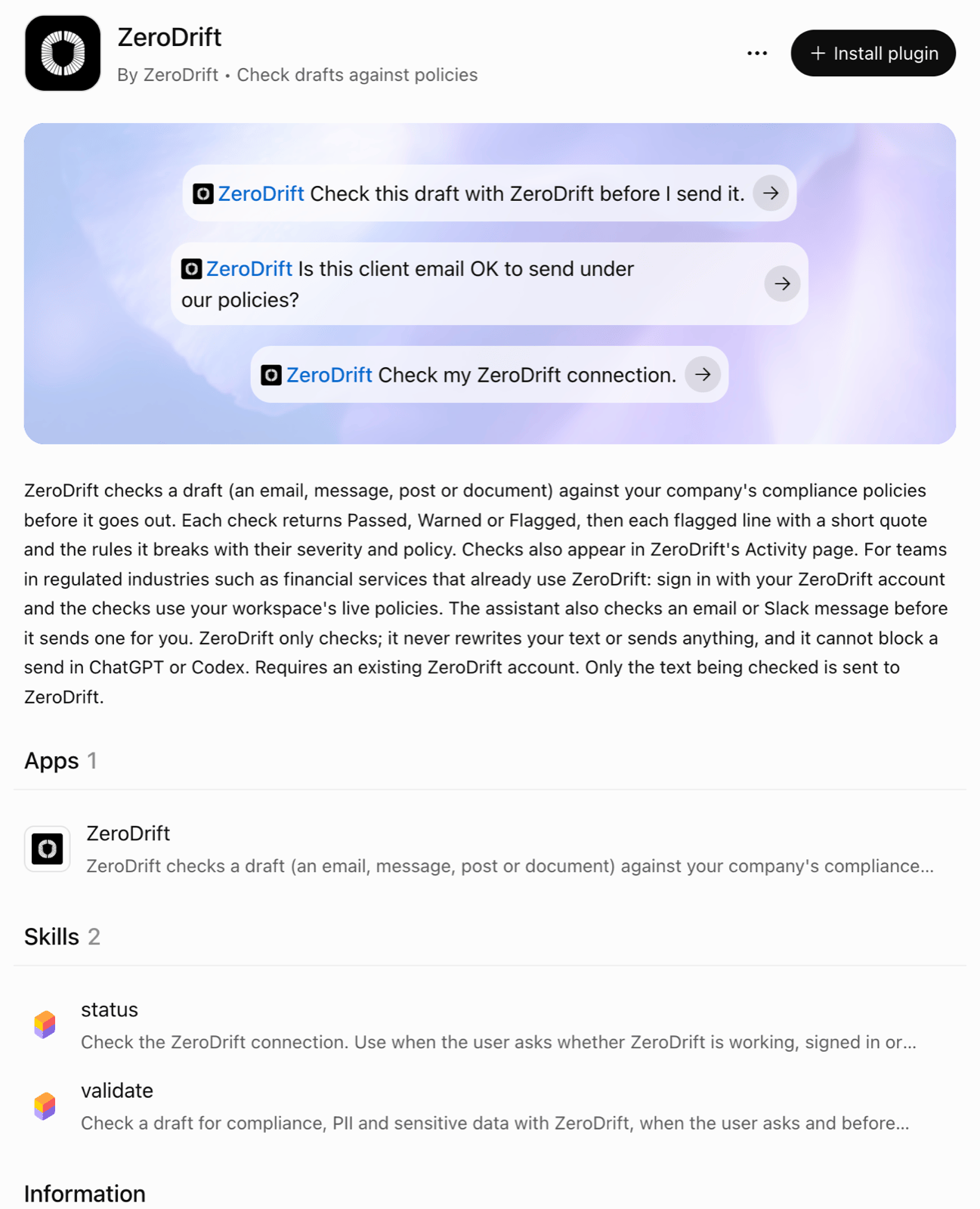
2
Install
Select Install plugin, at the top right of the listing.
3
Connect your account
ChatGPT sends you to ZeroDrift’s Connect ChatGPT page, which shows the app (ChatGPT), where it returns to (chatgpt.com) and your workspace. Select Approve to let ChatGPT check messages with your ZeroDrift policies, or Deny to cancel.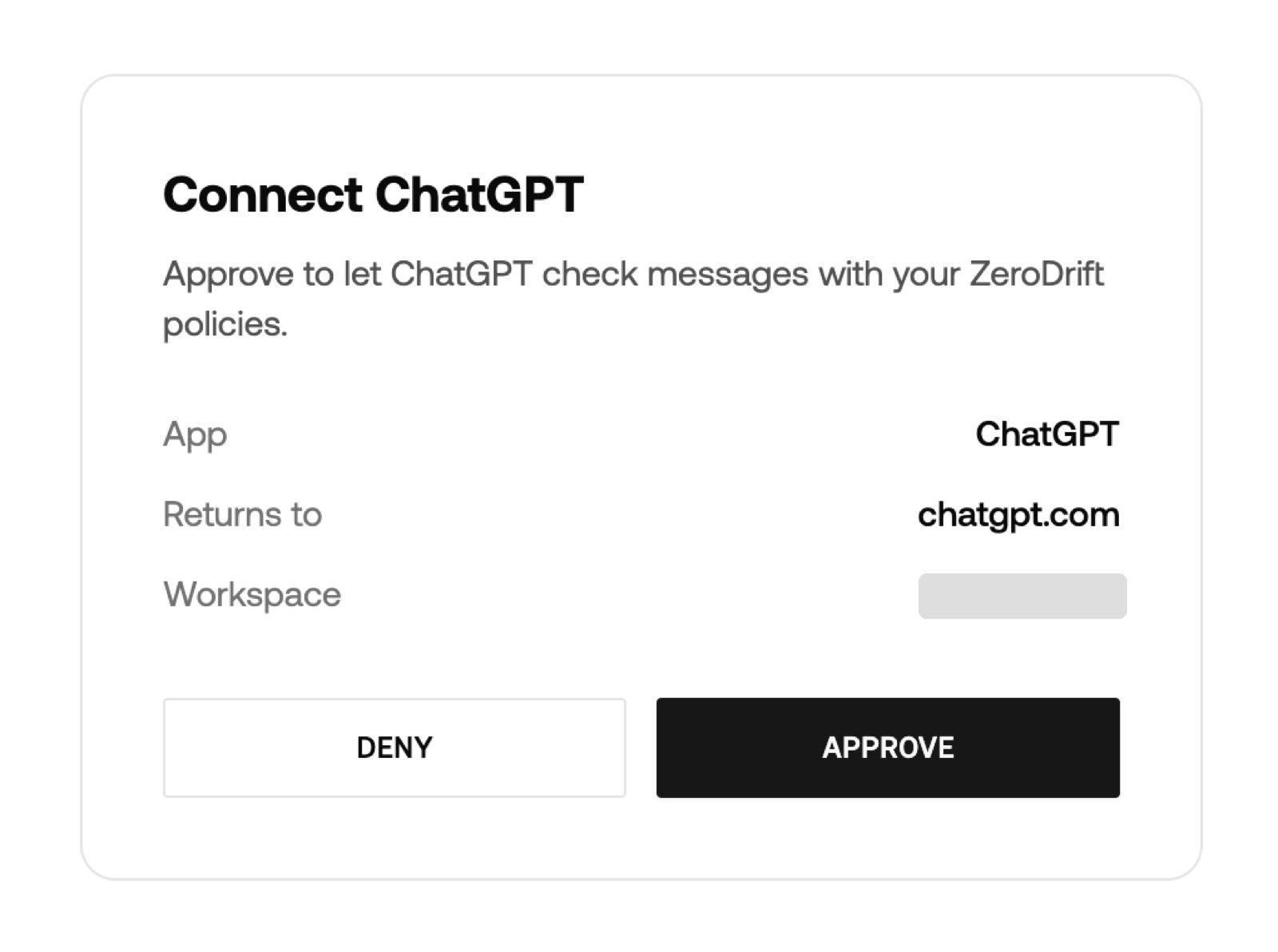
4
Confirm
ChatGPT shows “ZeroDrift plugin installed” with Try now, Settings and Try in chat. Ask for the ZeroDrift status to confirm the connection.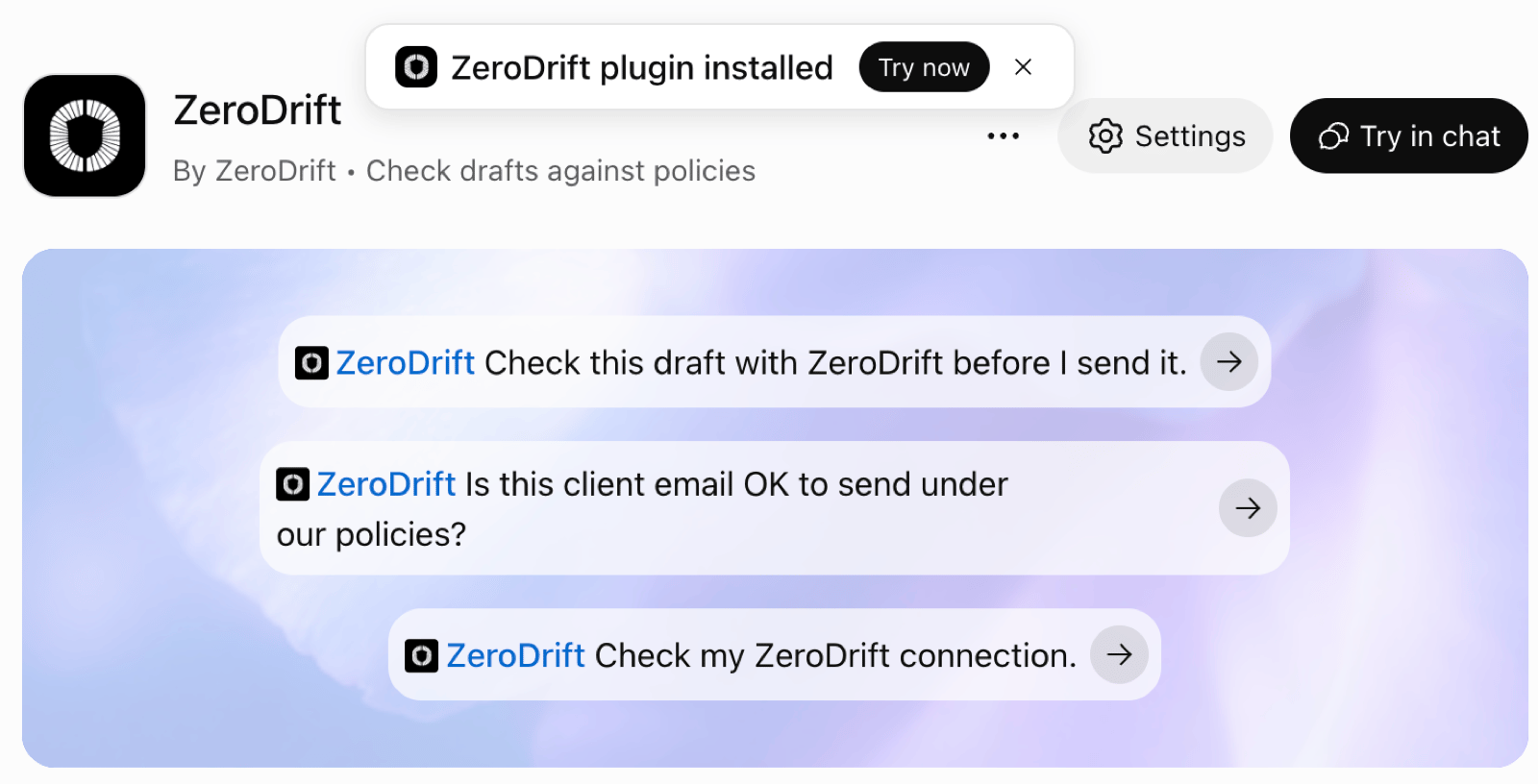
Codex: nothing more to install
You do not install the plugin again for Codex, and you usually do not need to do anything there. If Codex does not show the plugin or asks you to sign in, use this as a fallback: sign in to the ZeroDrift connection from a terminal, then approve access in the browser.Install for your workspace (admins)
Only organization admins of the OpenAI account can see this screen. From here you can install the plugin for the whole organization, or make it available to the whole organization.1
Open the plugin page
Open Plugins > ZeroDrift, select the … menu, and choose Manage for workspace. The menu also has Copy link and Uninstall.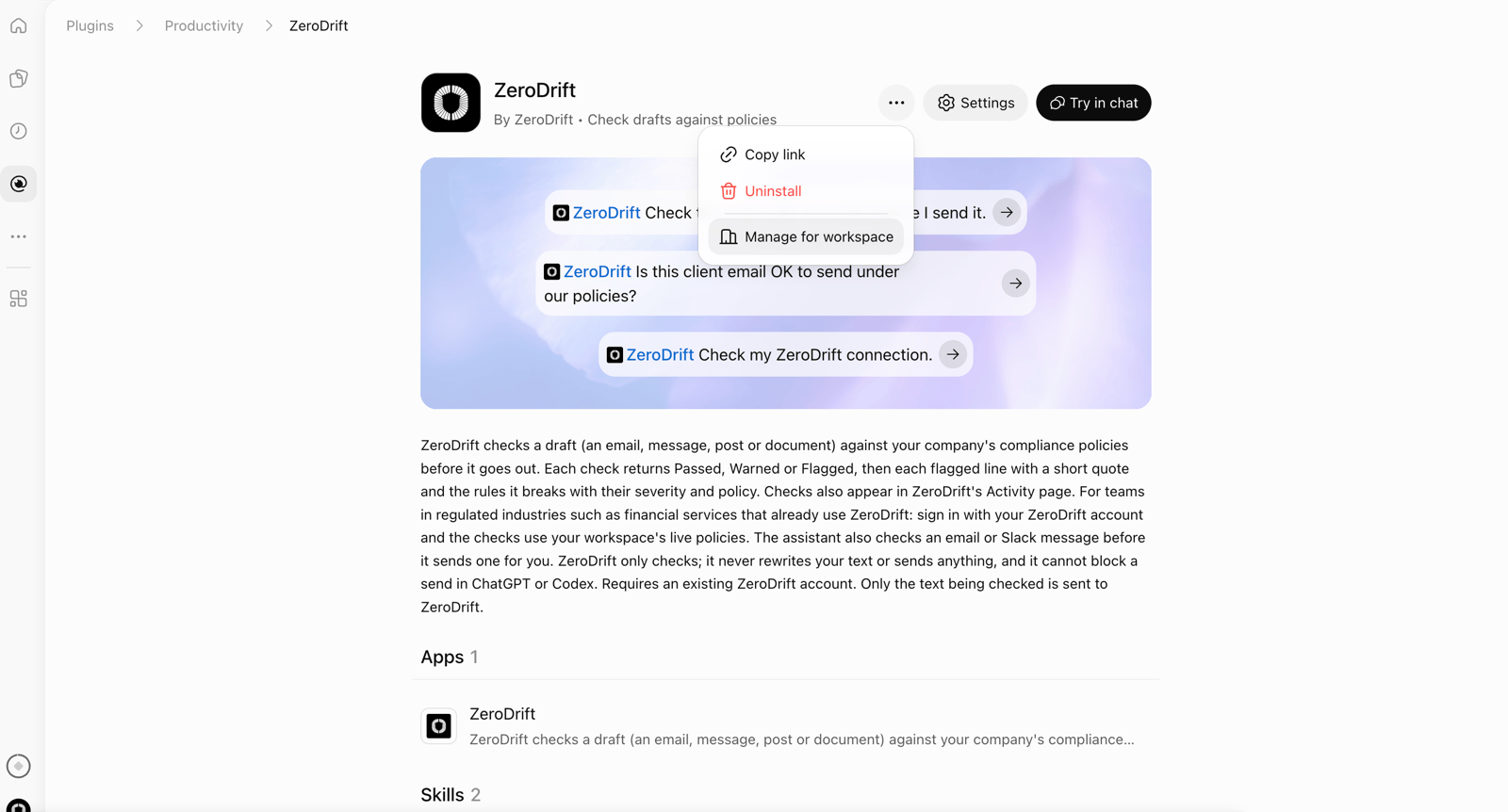
2
Set availability
In Workspace Settings > Plugins > ZeroDrift, the plugin shows Enabled. Under Availability, the Workspace default applies to everyone in the workspace. Choose Available or Installed.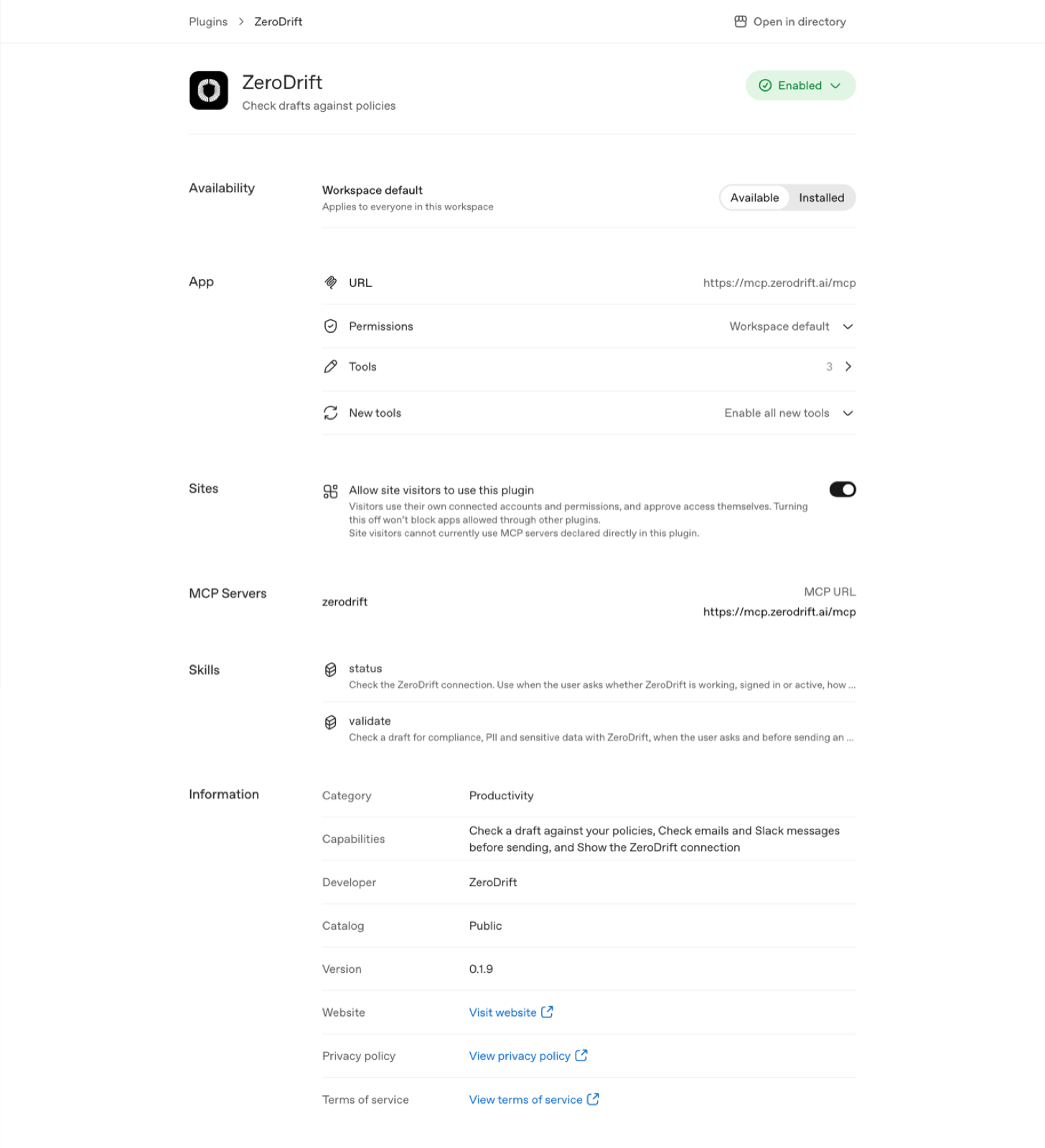
3
Review the rest
The page also lists the app URL, Permissions (workspace default), Tools (3), New tools (Enable all new tools), and a Sites toggle, “Allow site visitors to use this plugin”. It shows the MCP server
zerodrift, the status and validate skills, and the listing information (Catalog Public, Version 0.1.9).https://mcp.zerodrift.ai/mcp using OAuth. You do not copy an API key.
Before you start
- An existing ZeroDrift account, and authorization to its workspace. Checks use your workspace’s live policies.
- You can sign in to ZeroDrift Command in a browser and approve access.
In ChatGPT Business and Enterprise workspaces, owners and admins control plugin installation under Admin console > Plugins. The policy options are Available for installation, Installed for workspace, Customize by role and Disable. Member permissions such as Use plugins and Upload plugins with custom MCP servers are set there too (workspace plugin controls). Workspaces in FedRAMP show Apps instead of Plugins.
How it works
ZeroDrift does not connect to your mailbox or to the sites where you publish. Your assistant already does that. ZeroDrift can validate any content, or plugin reference content, that Codex or ChatGPT has access to. If ChatGPT or Codex can read or write it, the assistant can hand it to ZeroDrift. ChatGPT formats the text itself so that it passes the validation API.- You ask the assistant for a task in plain language, such as “Check this email with ZeroDrift”.
- The assistant gets the content, either from your message or through another connector it has, such as Gmail.
- The assistant sends the text to a ZeroDrift tool (
validate,check_sendorstatus). - ZeroDrift checks the text against your active rules and returns the result.
- The assistant shows you the result and each flagged line, with the rule and policy it breaks.
validate skill checks a draft and its status skill confirms the connection. The server also has a check_send tool, which the hooks version’s hooks call before a Gmail action.
The assistant shows the outcome and next step, then each flagged line with its severity, rule and policy. It suggests wording only if you ask, and ZeroDrift has not checked that wording. If a result is Flagged, the validate skill tells the assistant not to send, post or publish the content and to let you decide.
Results also appear in the Activity feed in ZeroDrift Command. Each check is listed with its status (Passed or Flagged), the rules violated, the source, and a Client column that shows the client, for example ChatGPT.
What to expect
- Detection only. ZeroDrift flags text and never rewrites it. When the assistant suggests wording, that wording is the assistant’s, and ZeroDrift has not checked it until you validate it again.
- Your workspace’s active rules. The result depends on the rules active in your ZeroDrift workspace.
- A guardrail, not a security boundary. ZeroDrift catches drafts that break your policies when the check runs. It does not stop a person, or an assistant with other tools, from sending content some other way.
Example results
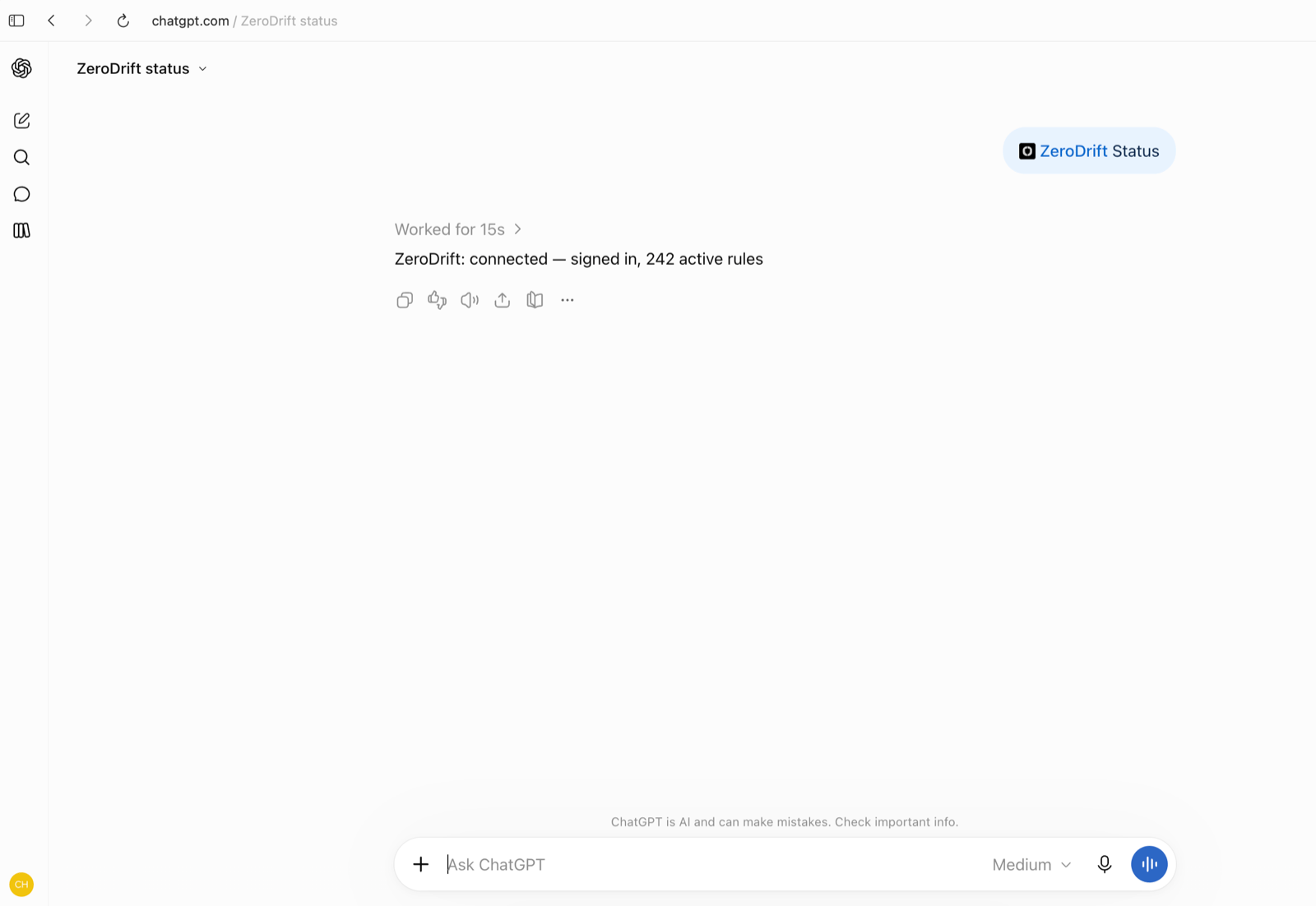
Wording from runs in ChatGPT:- Status: “ZeroDrift: connected — signed in, 242 active rules”. The number is your workspace’s active rules. Status confirms you are signed in and validates nothing.
- Permission prompt: before it sends text to ZeroDrift, ChatGPT asks “Allow ChatGPT to use ZeroDrift?”, lists the data it shares, and offers Deny or Allow once.
- Passed: “ZeroDrift: Passed — no issues found.”
- Flagged: “ZeroDrift: Flagged — fix before sending (13 issues on 1 line: 12 do not send, 1 caution)”. It is followed by the line and a table of severity, rule and policy. Severities shown are Do not send and Caution.
- Several emails at once: asked to validate the last five emails from Gmail, ChatGPT returned five Passed verdicts, each with a ZeroDrift job ID. ChatGPT noted that it checked subjects and message text, with long messages condensed, and did not extract attachment contents for the check.
Verdicts
Passed and Warned both permit the send, and Warned is shown with the send.
Pick a distribution
Most people should use the marketplace install above. There is also an open-source hooks version of the plugin, which you only need if you want hooks. The two are not the same product, and the steps, enforcement and troubleshooting differ. Each section below names the distribution it applies to.What was tested
ZeroDrift tested the directory plugin in ChatGPT chat and ChatGPT Work, and confirmed the checks appear on the Activity page in ZeroDrift Command. If Codex asks you to sign in,codex mcp login zerodrift is the fallback.
OpenAI supports plugins in Chat and Work across ChatGPT on the web, desktop and mobile, and in Codex in the ChatGPT desktop app. The IDE extension does not support plugins (supported surfaces). That is OpenAI’s platform support, not a statement of what ZeroDrift tested.
What each distribution enforces
ZeroDrift is a guardrail, not a security boundary (see How it works). There are three levels:- Enforced. ZeroDrift stops the action when the verdict is Blocked. This needs hooks.
- Skill-directed. The plugin includes instructions that tell the assistant to check the message first and to withhold the send when the check flags it or cannot run. ZeroDrift does not technically stop the send. It depends on the assistant following the instructions.
- On request. You ask the assistant to check a draft and it returns the result. Nothing is stopped.
The directory plugin’s pre-send check is skill-directed validation. The assistant is instructed to withhold flagged or unchecked sends. Nothing at runtime enforces the block.
The directory plugin’s behavior was tested in ChatGPT chat and ChatGPT Work, and the checks behaved as described above: a flagged send is withheld, and a clean send goes through after the check passes. If the service is unreachable, the directory plugin withholds the send, and the hooks version lets it through. It is still a skill instruction, so treat it as a guardrail rather than a guarantee.
Why the directory plugin has no hooks
Per OpenAI’s documentation, lifecycle hooks run in the Codex runtime and need local setup and trust. A public directory package that contains lifecycle hooks is not currently eligible. See OpenAI’s plugin build guide. That is why the directory plugin relies on a skill and the hooks version relies on hooks.ChatGPT Chat and ChatGPT Work
The directory plugin has no hooks in either. OpenAI’s documentation says plugin hooks are not supported in cloud-orchestrated ChatGPT Work, and that synced Work supports only admin-defined MCP hooks (current limitation). Nothing establishes a hook mechanism for ordinary ChatGPT Chat either. In both, the directory plugin’s pre-send check is skill-directed only. An admin policy that allows only managed hooks makes Codex skip the hooks version’s own hooks (hook policy). Managed hooks are a separate deployment option. They are not a prerequisite for the directory plugin.Hooks version
The hooks version is not a separate GitHub product. The open-source repository is where the hooks version of the plugin lives, for Codex users who need hooks. Most people do not need it. Applies to the hooks version only. It includes hooks.1
Add the marketplace and install
2
Sign in to ZeroDrift
3
Trust the hooks
In Codex, run
/hooks and trust the ZeroDrift hooks. Codex asks again when an update changes them.Until you trust the hooks, Gmail actions are not checked before they run.Limits
- Only the text the assistant sends is checked. The assistant decides what to send and formats it for the validation API, so it may condense long messages or leave out parts such as promotional links. ZeroDrift checks the text it receives. Anything the assistant leaves out is not checked.
- Attachments. ZeroDrift validates text, not files directly. To check an attachment, ask ChatGPT to extract and format its contents for validation. Only the text ChatGPT sends is checked.
- Rate limit. 50 requests per minute for a single validation.
Data sent
The body of a Gmail action must be plain text. If a body is multipart or base64, the hooks version’s hook asks Codex to resend it as plain text before the check runs. The hooks also require a
subject field, which can be an empty string.
Troubleshoot
Disconnect
- Hooks version: run
codex mcp logout zerodriftto sign out. Uninstall the bundle separately through/plugins. - Codex, either distribution:
codex mcp logout zerodriftremoves the stored sign-in.codex mcp remove zerodriftdeletes the stored server definition.codex plugin removeremoves the plugin from local configuration and cache. Command names come from OpenAI’s developer commands reference. - Directory plugin in ChatGPT: open Plugins > ZeroDrift, select the … menu next to Settings and Try in chat, and choose Uninstall. The menu also has Copy link. Uninstalling removes only the bundle. A separately connected MCP integration stays connected until you disconnect it in ChatGPT. A workspace-installed or default plugin may not show Uninstall, because an admin controls it. See removal guidance.
- ZeroDrift Command: open Connections. Under Enforcement surfaces, the ChatGPT and Codex card shows a Connected status, when it was last used, and a Manage button. Manage opens a ChatGPT and Codex dialog. Its Use in Codex section shows
codex mcp login zerodrift(“In a terminal: sign in to ZeroDrift”) and/hooks(“In Codex: trust the ZeroDrift hooks”). Its Connection section shows “Connected since” with the date and a red Disconnect button. The/hooksline applies only to the GitHub repo plugin. The directory plugin has no hooks. Disconnect ends the connection. Select Done to close the dialog. - Workspace admins: set the plugin’s installation policy to Disable. Disabling does not uninstall the plugin or disconnect existing connections, so review role overrides and revoke the provider authorization separately (admin controls).
Next steps
Check an Email
Ask the assistant to check an email. See Flagged, Passed, and suggested wording.
Check a Social Post
Check a post for X before you publish it.
Pre-Send Email Check
Have the assistant check an email before it sends. The hooks version and the directory plugin, in separate sections.
Batch Check and Activity
Check your last five emails, then review each check in Activity.